Charitable donations are among the most commonly lost tax deductions — not because people didn't donate, but because the paper receipts disappeared into a junk drawer, a car console, or a coat pocket before April. Converting your donation receipts to a single organized PDF before they get lost is the simplest step you can take to protect your charitable deductions.
Here's how to photograph paper receipts and compile them into one PDF using QuickyDesk's free Convert tool.
What Makes a Valid Donation Receipt
A qualifying charitable donation receipt must show:
- The name of the charitable organization (must be a qualified 501(c)(3))
- The date of the contribution
- The amount donated
- For donations over $250: a statement of whether any goods or services were provided in exchange
If any of these elements are missing or illegible, the receipt may not support your deduction claim.
Photographing Paper Receipts for Best Results
- Lay each receipt flat on a plain surface with good lighting — avoid shadows across the text
- Photograph in landscape orientation if the receipt is wider than tall
- Take two photos if the print is faint — one with flash, one without
- Zoom in if needed to ensure all text is legible in the photo before proceeding
Converting Donation Receipts to PDF
Step 1: Gather All Receipt Photos
Collect photos of all paper receipts plus screenshots or saved PDFs of any digital confirmation emails. If you have digital confirmation emails, screenshot them and save as JPG or PNG.
Step 2: Open the Convert Tool
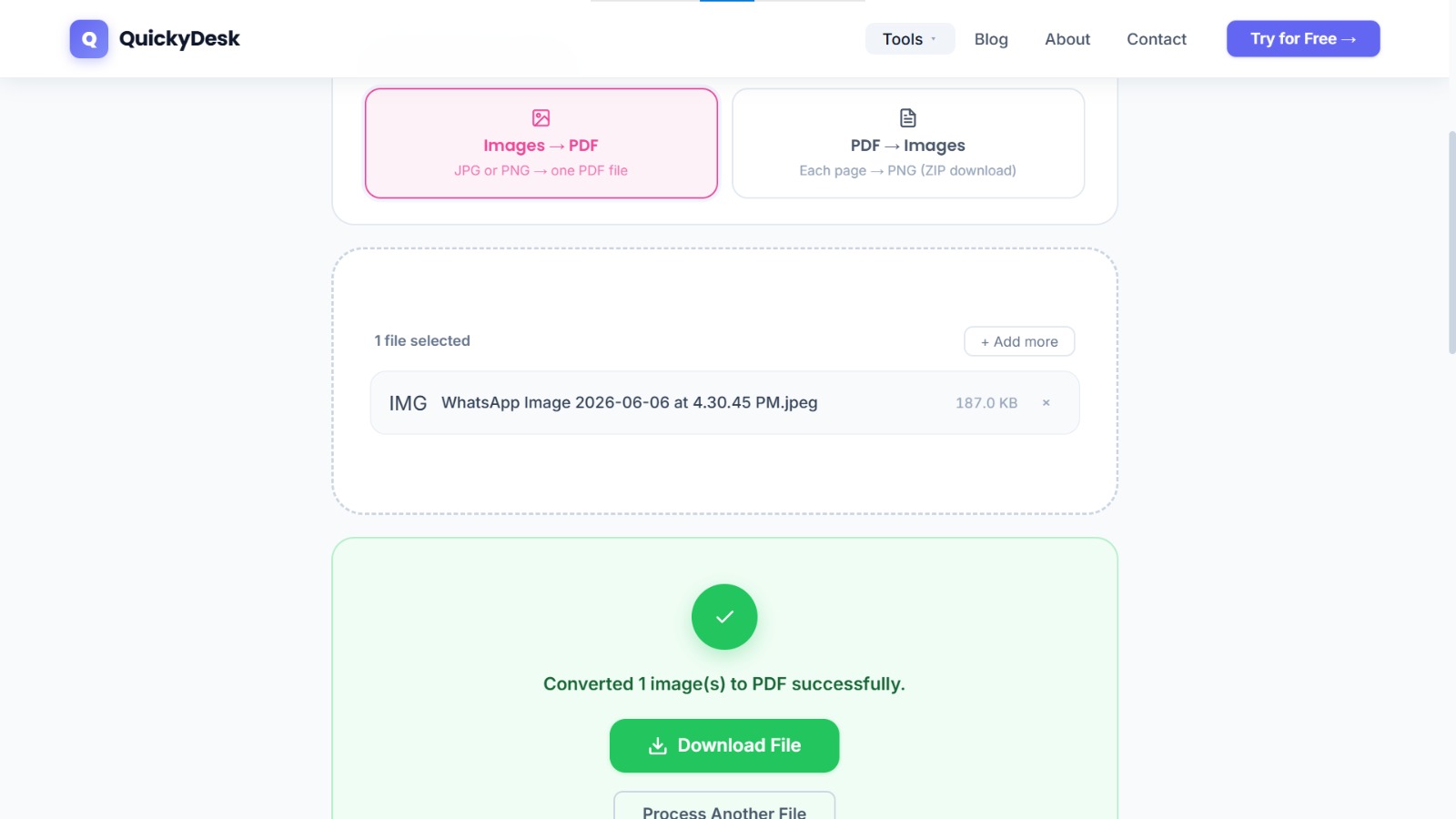
Navigate to QuickyDesk's Convert tool and select Image to PDF mode.
Step 3: Upload and Convert
Upload all receipt images at once. Review the file list and verify the sequence. Convert and download the resulting PDF.
Step 4: Merge with Existing Donation PDFs
If some donation confirmations arrived as PDF emails, use QuickyDesk's Merge PDF tool to combine your photographed receipts PDF with any existing PDF confirmations into one comprehensive annual donation record.
What a Good Donation Receipt Should Show
Before bundling receipts into a single PDF for your records or a tax preparer, make sure each one is complete. A receipt that will hold up at tax time generally needs:
- The organisation’s name and tax-exempt status.
- The date and amount of each contribution.
- A statement of whether any goods or services were received in return.
- For non-cash gifts, a description of the item rather than a dollar value.
Converting a year’s worth of emailed and photographed receipts into one ordered PDF — sorted by date — turns a shoebox of images into a single document you can hand off or archive. Keep the original images until your return is filed and accepted.
Convert your donation receipts to PDF now
Free, no account required, works on any device.
Convert Images to PDF →Securing Your Donation Documentation
Donation receipts often include your name, address, and tax identification information. Before sharing a compiled donation PDF with an accountant or submitting with a tax filing, consider adding password protection to the file.
QuickyDesk offers a complete free PDF toolkit — merge, split, compress, convert, protect, watermark, and more. No account required, no watermarks.
Frequently Asked Questions
Does the IRS accept photographed receipts as charitable donation documentation?
The IRS requires written acknowledgment from the charitable organization for donations of $250 or more. For smaller amounts, a clear photograph of the receipt showing the organization name, date, and amount is generally acceptable documentation.
What information must appear on a charitable donation receipt?
The organization's name, the date, and the amount. For donations of $250 or more, the receipt must also state whether any goods or services were provided in exchange for the donation.
Can I convert digital donation confirmation emails into a PDF?
Yes. Screenshot the confirmation email and save as JPG or PNG, then include it with your other receipt images when converting to PDF using QuickyDesk's Convert tool.