You put weeks into a research report, a how-to guide, a pricing breakdown, or a visual presentation — and it's good. The kind of document you'd want people to read. You save it as a PDF and then discover the problem: Instagram doesn't accept PDF uploads. Neither does Facebook for standard posts or stories. The content that took weeks to produce is stuck in a file format that most of the internet can't display.
The solution isn't to recreate everything from scratch in a design tool. It's to convert the PDF pages you want to share into high-resolution PNG images, which every social platform accepts.
Why Social Platforms Don't Accept PDFs
PDF is a document format optimized for print fidelity and structured text — not for streaming media consumption. Social platforms are built around images and video, and their upload pipelines are designed for those formats.
| Platform | Accepts PDF? | Best Format for Document Content |
|---|---|---|
| Instagram (posts and stories) | No | JPG or PNG |
| Facebook (posts) | No (for images) | JPG or PNG |
| LinkedIn (posts) | Yes (as "document" posts) | PDF or PNG |
| Twitter / X | No | JPG or PNG |
| No | JPG or PNG |
LinkedIn is the notable exception — it allows PDF uploads as document posts, which render as a swipeable carousel directly in the feed. For everything else, PNG is the path.
Which Pages to Share
Not every page of your PDF will work as a social post. The most effective pages share a few characteristics:
- High visual clarity at a glance — a single clear headline, a key statistic, or a prominent chart that communicates in seconds.
- Self-contained meaning — choose pages that stand alone: a summary page, a visual comparison, a key finding, a step-by-step list.
- Proportions that work for the platform — standard portrait PDFs (A4) are taller than wide. Square or vertical formats perform better on Instagram.
If your PDF is long, use QuickyDesk's Split PDF tool to extract only the specific pages you want to convert.
Converting PDF Pages to PNG Images
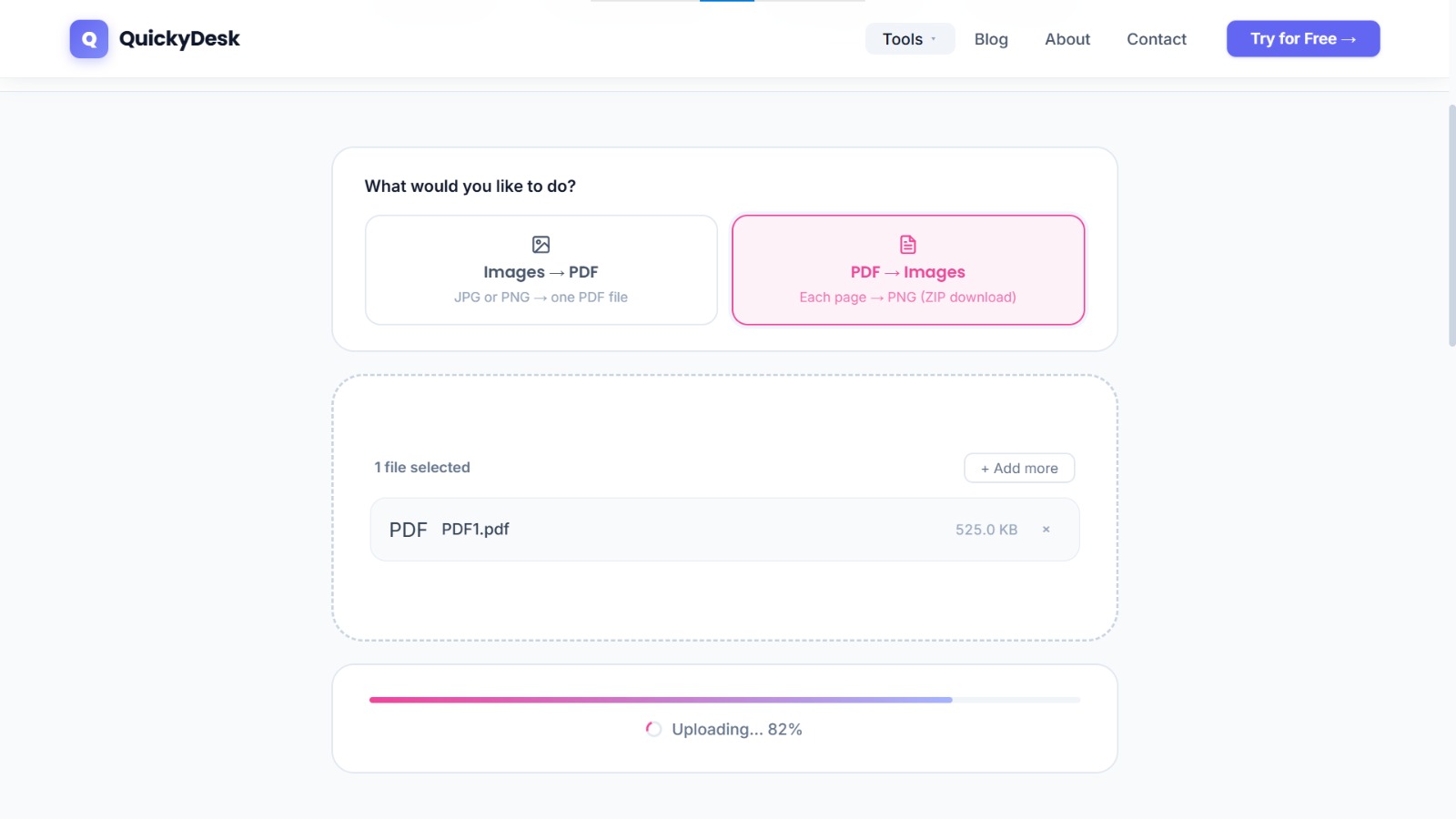
- Open QuickyDesk's PDF to Images tool. No software to install, no login required.
- Upload your PDF. If you used the Split PDF tool to extract specific pages first, upload that extracted file here.
- Let the tool convert. For a standard 10-page document, this typically completes in 15–20 seconds.
- Download the ZIP file. The output is a ZIP archive containing one PNG file per page. Extract the ZIP on your computer.
- Select your pages. Browse the extracted images and identify the specific pages you want to post.
Convert your PDF to images
Free, no login required. High-resolution PNG output ready for social media.
PDF to Images Free →Platform-Specific Posting Guide
Instagram Grid Posts and Carousels
Instagram allows up to 10 images per carousel post. This is the ideal format for a multi-page summary — each page becomes one swipeable slide. Tap the + icon to create a post, tap "Select Multiple," and select your PNG images in order. Add a caption that gives context ("Swipe through for all 5 steps →").
Facebook Posts
Facebook treats uploaded images as a photo album if you upload multiple at once. Upload your PNG files in the order you want them displayed. Add a post caption with context.
LinkedIn Carousels and Posts
If LinkedIn is your only platform, upload the original PDF directly as a document post — LinkedIn renders it as an in-feed swipeable carousel automatically. If you prefer PNG images for more control over cropping or to use the images elsewhere, the PDF to Images workflow above works here too.
Twitter / X
Twitter accepts up to four images per tweet. For document-style content, choose your strongest page and pair it with tweet text that frames the context. Threads work well for multi-page content.
Tips for Better-Looking Social Conversions
- Check image sharpness before posting — zoom into the PNG at 100% before uploading.
- Add your branding before posting — if you want to add a social-specific element (a "follow for more" frame, your handle), add it in a simple image editor before posting.
- Design with social in mind from the start — use large type, high-contrast colors, and minimal text per page for content you regularly share socially.
QuickyDesk offers a complete free PDF toolkit — merge, split, compress, convert, protect, watermark, and more. No account required, no watermarks.
FAQ
How many pages can I convert at once?
The PDF to Images tool converts the entire uploaded PDF. If you have a 30-page report and only want 5 specific pages, use the Split PDF tool first to extract just those pages.
What resolution will the output PNGs be?
The tool renders PDF pages at high resolution, suitable for both screen display and standard printing. Output quality is more than sufficient for crisp display at any phone screen size.
LinkedIn accepts PDF posts. Should I still convert to PNG?
If LinkedIn is your only platform, posting the PDF directly gives you the native in-feed carousel experience. Converting to PNG makes sense when you want to post the same content to Instagram, Twitter, or Facebook.
Can I animate my PDF pages into a video for Reels or TikTok?
The tool outputs static PNG files, not video. To create a video, import the PNGs into a video editor (CapCut, Adobe Express, or iMovie) and set each image to display for 3–5 seconds with transitions.
Will converting to PNG lose text quality from the original PDF?
The conversion renders each page as a raster image, so text is no longer selectable or searchable — it becomes part of the image. Visually, the quality is excellent for display purposes.