A competitive listing can generate five, ten, or even fifteen offers in a single weekend. Each offer arrives as a separate PDF — exported from Dotloop, DocuSign, or emailed directly as an attachment. Presenting all of them to sellers in a way they can actually use is a logistics problem every listing agent faces in a seller's market.
The professional standard is a single, well-organized PDF that presents every offer in a logical, comparable format. Here's how to build it using QuickyDesk's free Merge PDF tool.
Why a Compiled Offer PDF Matters
Sending sellers a folder of twelve unorganized files creates decision fatigue, gaps in credibility, and missed details on non-price terms. A compiled review document lets you structure the presentation to highlight waived inspections, leaseback flexibility, and financing strength — factors that may justify a lower-priced offer over the headline number.
Build the Comparison Table First
Before merging, create a one-page summary table in Word or Google Sheets and export it as PDF. Include: offer price, down payment percentage, loan type, inspection contingency, appraisal contingency, closing date, and any escalation clause. This table becomes the first page of your compiled PDF.
Prepare Individual Offer PDFs Before Merging
Rename each offer file with a numeric prefix so they sort in your intended presentation order:
01_Chen_465000_Offer.pdf02_Rivera_458500_CashOffer.pdf03_Patel_452000_EscalationOffer.pdf
Verify each file is complete: all signatures present, addenda attached, and no missing pages.
Merging Offers with QuickyDesk
Step 1: Open the Merge Tool
Navigate to QuickyDesk's Merge PDF tool in any browser — no account required, no software to install.
Step 2: Upload in Order
Upload your comparison table PDF first, then each individual offer PDF in your intended presentation sequence. Because you've prefixed filenames with numbers, they should sort correctly.
Step 3: Verify the Queue
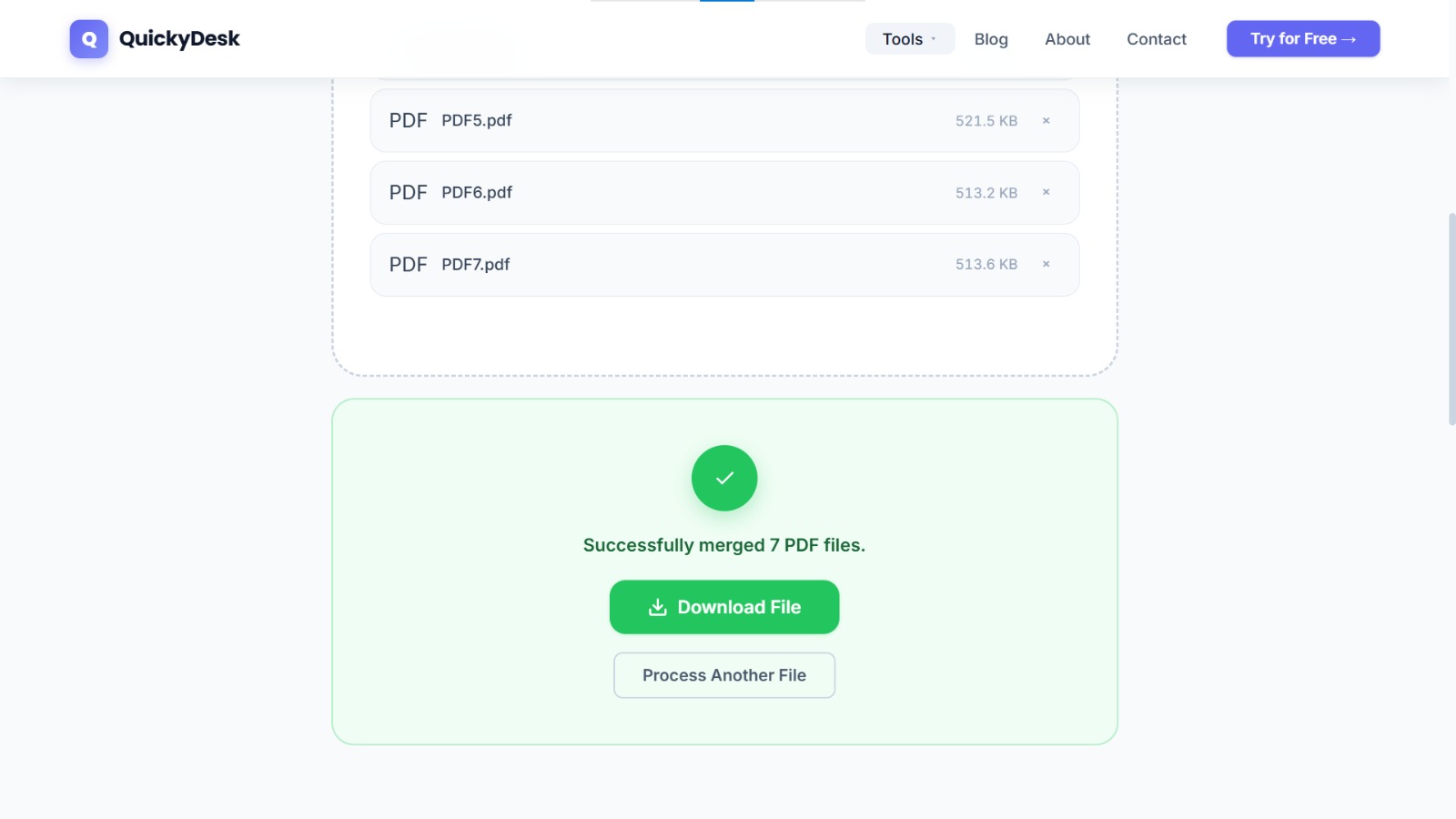
Confirm the upload queue shows: Summary Table → Offer 1 → Offer 2 → Offer 3 and so on. Adjust if needed.
Step 4: Merge and Download
Click Merge PDFs. For a batch of 4–8 standard residential offers, processing completes in under 30 seconds. Download the merged file and open every page before sending.
You may also want to use the free Compress PDF tool to compress each PDF first — no account or download required.
Ready to compile your offer package?
Free, no account required, no watermarks on output.
Merge PDF Files Free →Using the Compiled PDF With Sellers
Send the compiled PDF to sellers 24 hours before the review meeting so they can study the comparison table first. At the meeting, use the PDF in screen-share on a laptop or tablet and walk through each offer page by page. After the meeting, the compiled PDF becomes your compliance record — one file, one timestamp, all offers documented.
File Security
Offers contain sensitive personal and financial information. QuickyDesk processes files over encrypted HTTPS and does not retain uploaded documents after the session ends. For an extra layer of protection when sharing the compiled comparison with clients or other agents, consider password-protecting the PDF so only intended recipients can open it. If you want to mark the document as draft or internal-only, our watermark guide walks through adding a text stamp to every page.
QuickyDesk offers a complete free PDF toolkit — merge, split, compress, convert, protect, watermark, and more. No account required, no watermarks.
Frequently Asked Questions
Does Dotloop or DocuSign compile competing offers automatically?
Neither platform has a built-in function to compile competing offers from different buyers into a single comparison document. The compilation step is done outside these platforms using a tool like QuickyDesk's Merge PDF.
How many offers can I merge in one operation?
There is no practical page limit. A compilation of 15 competing offers, each 4–6 pages with addenda, processes without issue.
Should I email the compiled PDF or share via a portal?
For offers under 10 MB, email attachment is fine. For larger compilations, a shared Google Drive or Dropbox link with view-only permissions is more reliable and allows you to see when sellers have opened the document.