Last updated: January 2026
You can reduce a PDF's file size significantly — often much smaller than the original, depending on the file content — using a free online tool, with no software to install and no account to create. Upload your file, wait a few seconds, and download a much smaller version.
Why PDF File Size Matters
It always happens at the worst time. You try to attach a document to an email and get a "file too large" warning. Or a government portal rejects your upload because it exceeds a 1MB or 2MB limit. Or you just want to send something over WhatsApp without it taking ages to load.
Most email clients cap attachments at 25MB, but plenty of online forms, job portals, and submission systems set the bar much lower. And scanned documents, image-heavy reports, or exported presentations can easily hit 10MB or more. The fix is simple: compress it before you send.
How to Reduce PDF Size for Free — Step by Step
QuickyDesk's free PDF compressor handles this in under 30 seconds. No login required, no watermark, no app to install. It works on Windows, Mac, Android, and iPhone.
Step 1 — Open the tool
Go to quickydesk.com/compress in any browser. No installation needed.
Step 2 — Upload your PDF
Click the upload button and choose your file, or just drag and drop it onto the page.
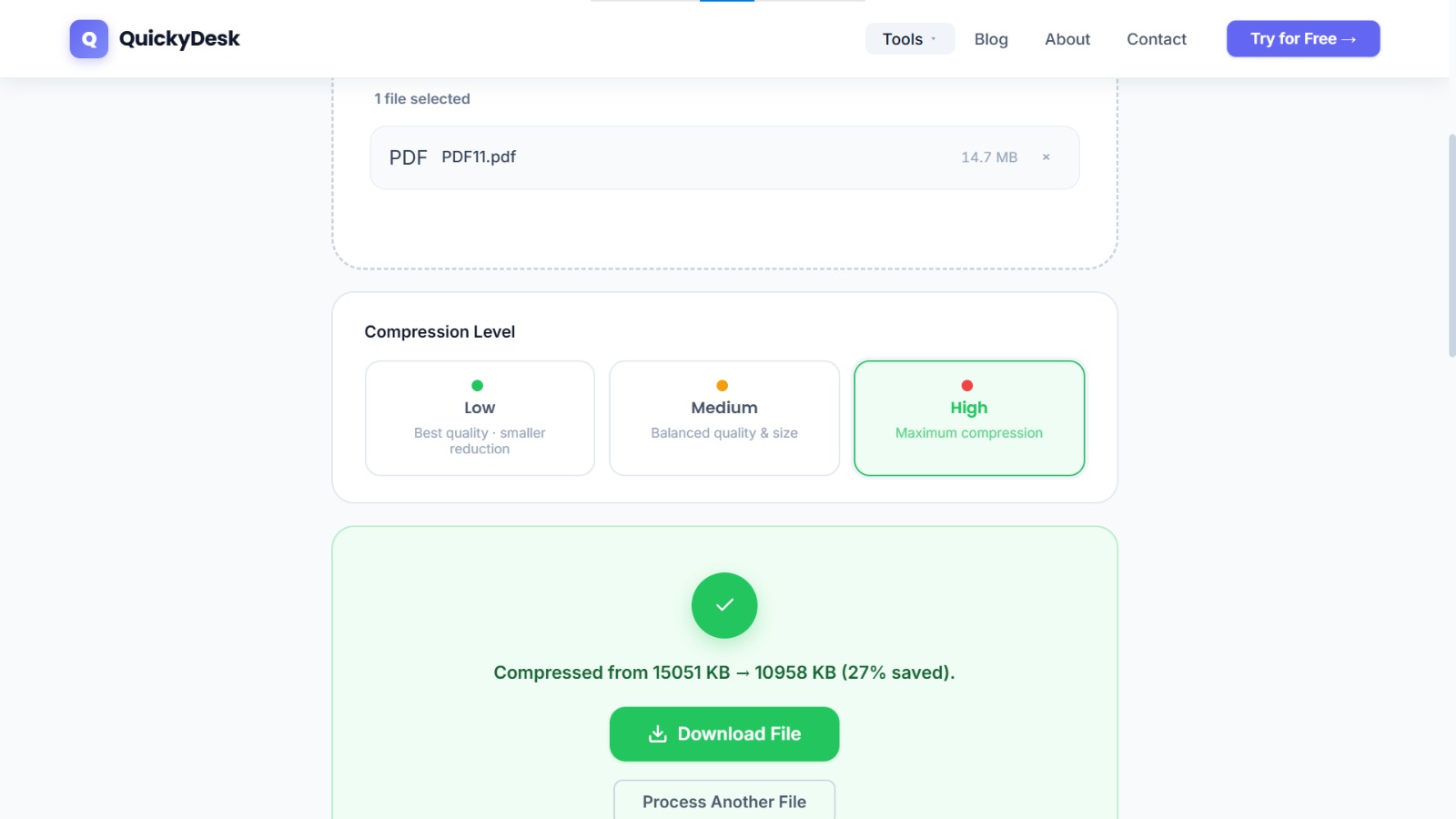
Step 3 — Wait for automatic compression
The tool compresses your PDF automatically. There are no settings to adjust — it optimizes the file as much as possible based on its content. This usually takes under 10 seconds.
Step 4 — Download your compressed file
Once it's done, hit Download. Your smaller PDF is ready to email, upload, or share.
Note: Compression is automatic, not manual. QuickyDesk reduces your file to the smallest possible size — results vary depending on the content, but most standard documents come out significantly smaller. Very large files or PDFs with many scanned images may still be a few MB after compression, but will be noticeably smaller than the original.
Tips to Make Your PDF Even Smaller
- Remove pages you don't need first. If you only need part of a document, use the free PDF split tool to extract just those pages, then compress the trimmed version. Fewer pages always means a smaller file.
- Export, don't scan. Scanned PDFs are essentially photos — they're much heavier than PDFs created directly from Word, Google Docs, or other apps. Whenever possible, export to PDF rather than scanning a printout.
- Reduce image resolution before creating the PDF. If you're building a PDF from scratch with photos, resize images to 72–96 DPI before inserting them. Print-quality images (300 DPI+) add enormous weight to a file.
- Don't compress repeatedly. Running the same file through a compressor multiple times won't shrink it further and can gradually degrade image quality. Compress once, from the best-quality original you have.
- Use text-based PDFs where possible. A 50-page text document can easily be under 500KB. A 5-page document with scanned images could be 20MB.
QuickyDesk offers a complete free PDF toolkit — merge, split, compress, convert, protect, watermark, and more. No account required, no watermarks.
FAQ
Can I target a specific file size like exactly 1MB?
Online compressors work automatically — the tool reduces your file as much as the content allows. There's no manual slider to set a specific target size. If your file is still too large, removing unnecessary pages before compressing is the most effective next step.
Will compressing my PDF reduce the quality?
Compression optimizes image data and removes redundant metadata. Your text stays completely sharp. Images may lose a small amount of resolution, but for most everyday documents — forms, reports, contracts — the difference is barely visible.
Is it safe to upload my PDF to an online tool?
On QuickyDesk, yes. Your file is encrypted during upload and automatically deleted from the server once processing is complete. No staff or third parties have access to your documents.
What if my file is still too large after compression?
The document likely contains high-resolution scanned pages or many large images. The most effective fix is to split out only the pages you need first, then compress the reduced version.
Does compressing a PDF change or remove content?
No. Compression changes how data is stored internally, not what's visible. Your text, images, tables, and layout will be identical in the compressed version.
How do I compress a PDF for a job application?
Most job portals accept PDFs under 2–5MB. Upload your CV or application document to QuickyDesk's free compressor — it reduces file size automatically with no login and no watermark on output files. If the file is still too large, use the split tool to remove any unnecessary pages first.
Conclusion
Reducing a PDF's file size doesn't require paid software, technical knowledge, or even signing up for anything. The fastest approach is a free online tool that handles the compression automatically.
QuickyDesk's PDF compressor is free, works in any browser on any device, requires no login, and leaves no watermark on your file. Upload, wait a few seconds, and download a significantly smaller PDF.
If your file is still too large after compression, the most effective next step is to split out only the pages you need, then compress again. Once compressed, if the document contains sensitive content, see our guide on how to password-protect a PDF before sharing.