Expense report day has a specific kind of misery to it. You've got receipts scattered across your email inbox, your phone's camera roll, a forwarded confirmation from a vendor, two invoices that arrived as PDFs, and a handwritten parking stub you photographed at the airport. Now you have to turn all of that into something your finance team will actually process without sending it back.
The single most effective thing you can do — before worrying about categorization, amounts, or policy limits — is to consolidate everything into one ordered PDF.
Why Finance Teams Push Back on Loose Receipt Files
If you've ever had an expense report kicked back or delayed without a clear explanation, disorganized attachments are often the root cause.
File tracking breaks down at scale
A finance team processing 40 employees' monthly expenses might receive several hundred individual attachments in a single week. Each file has to be opened, matched to the corresponding expense line, and filed. When receipts arrive as a mix of JPG photos, forwarded emails, PDF invoices, and scanned files with no consistent naming, that matching process slows to a crawl.
Accounting software imports expect structured documents
Many mid-size companies use accounting platforms that require receipts to be uploaded against specific expense records. A 14-attachment email doesn't feed cleanly into that workflow. One consolidated PDF maps to one upload action.
Loose attachments get lost in email threads
When a finance manager needs to query a specific receipt, hunting through a thread of 12 separate attachments is slow and error-prone. A single document with all receipts in logical order takes thirty seconds to scan.
Preparing Your Receipts Before Merging
Convert non-PDF receipts to PDF first
Email confirmation receipts can usually be printed to PDF from your email client. Phone photos of paper receipts can be converted using QuickyDesk's Image to PDF tool — upload the photos and download a clean PDF version.
Sort by date before you upload
Arrange your receipt files in chronological order — earliest to latest purchase date. This makes the consolidated PDF immediately readable without requiring the reviewer to jump around.
Name your files logically
Before uploading, rename your files so they sort in the correct order: 01_hotel_chicago.pdf, 02_flight_return.pdf, 03_client_dinner.pdf. This ensures the upload queue reflects your intended sequence.
How to Merge Your Receipts Using QuickyDesk
- Open the Merge PDF tool from QuickyDesk. No account creation or login is required.
- Upload all your receipt PDFs at once. The tool allows multiple file uploads in a single batch.
- Confirm the order. Review the file queue and verify receipts appear in chronological sequence. Drag to reorder if needed.
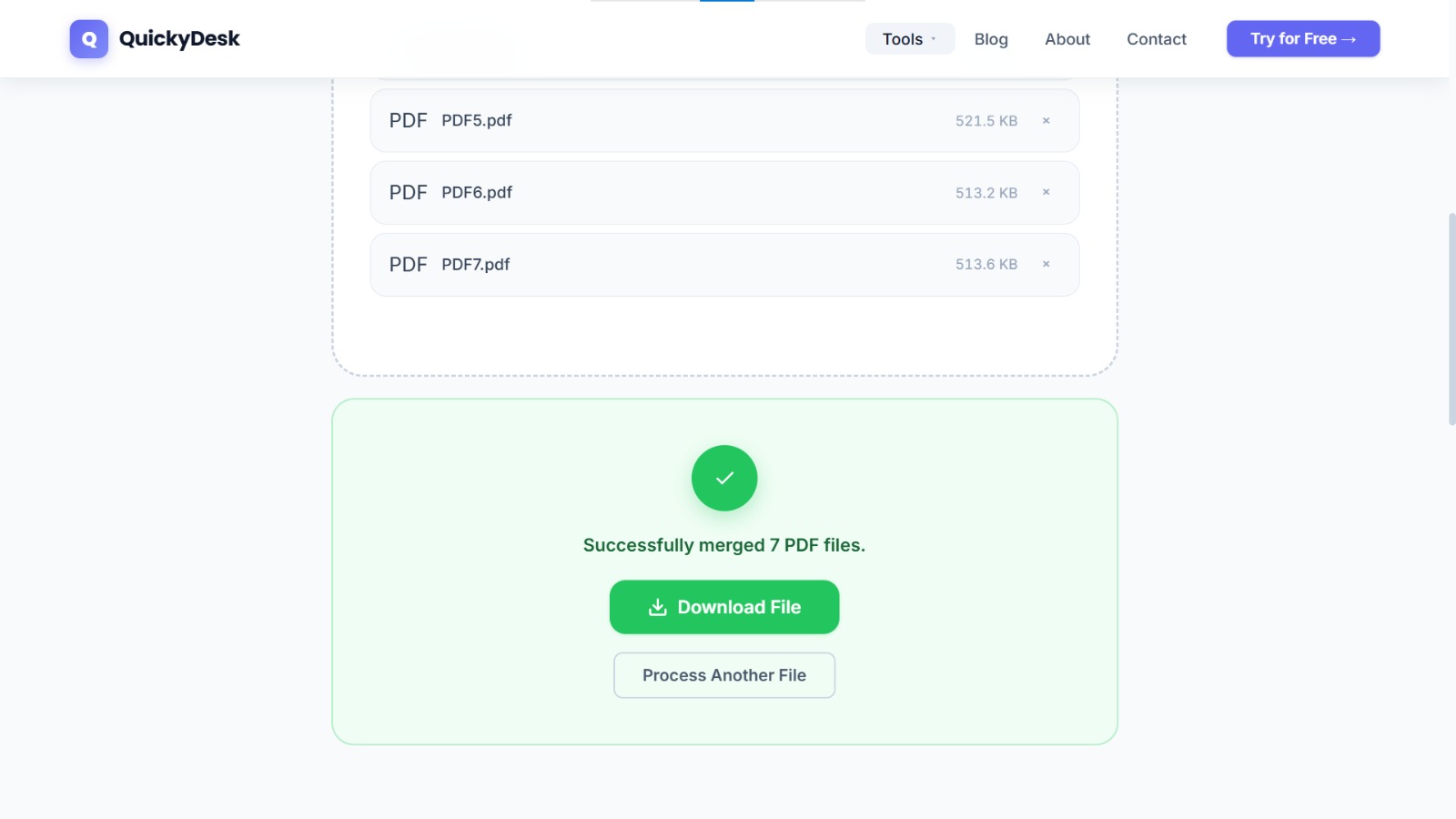
- Merge the files. Even merging 15–20 receipt files takes well under a minute.
- Download the consolidated PDF and do a final review: scroll through every page, confirm no receipts are missing, and check that all amounts are legible.
Merge your receipts into one PDF
Free, no login required. Your files are deleted automatically after processing.
Merge PDF Free →Formatting Tips That Get Expense Reports Processed Faster
Add a summary cover page
If your company uses one, make a summary sheet page one of your merged PDF. It lets reviewers see the total before flipping to the supporting receipts. Create it in Google Docs or Word, export as PDF, and merge it first in your upload queue.
Keep all amounts visible and unobstructed
Before merging, check that currency amounts, merchant names, and dates are clearly visible on every receipt. A receipt where the total can't be read will come back to you as a query.
Name the final merged file with your name and the period
Something like JaneDoe_Expenses_May2026.pdf tells the finance team immediately what they're looking at. Generic filenames like merged_final.pdf create unnecessary work on their end.
What to Do If the Merged File Is Too Large
If your expense period was busy, you might end up with a merged PDF that's 20–30 MB, which can exceed email attachment limits or portal upload caps.
Run the merged file through QuickyDesk's Compress PDF tool after merging. Receipt PDFs, especially those that include scanned or photographed content, compress very efficiently — a 25 MB receipt bundle typically comes down to 5–8 MB after optimization.
For managing PDFs from a mobile device while traveling, see our guide on merging PDFs from iPhone and Android. If you need to share the final expense report with a finance team or external auditor, consider password-protecting it before sending.
QuickyDesk offers a complete free PDF toolkit — merge, split, compress, convert, protect, watermark, and more. No account required, no watermarks.
FAQ
Can I merge PDFs and image files in one step?
The Merge PDF tool works with PDF files. Photos need to be converted to PDF first using QuickyDesk's Image to PDF tool, then added to your merge queue alongside other documents.
What if my receipts are in different currencies?
Merge them in the same order you list them on your expense report, regardless of currency. The finance team handles currency conversion.
Is it safe to upload receipts that show partial card numbers or banking details?
The connection to QuickyDesk is encrypted end-to-end, and uploaded files are automatically removed from the server within 15 minutes of processing. No data is retained after that point.
My company uses an expense management app — do I still need to merge receipts?
It depends on the platform. Many companies still require a consolidated PDF attachment alongside system entries for audit compliance. When in doubt, a merged PDF backup is never a bad idea.
Does the order of pages change if I re-upload a merged file?
No. Once merged, the page order is fixed in the output file. If you re-upload that file to the compressor, the page sequence is preserved exactly.