Last updated: January 2026
You can merge multiple PDF files on your iPhone or Android for free — directly in your browser, without downloading any app and without creating an account. Just open the tool, upload your files, and download the combined PDF in seconds.
Why You'd Want to Merge PDFs on Your Phone
Not everyone is sitting at a laptop when they need to combine documents. Maybe you're filing paperwork on the go, sending a multi-part contract from your phone, or combining scanned receipts before submitting an expense report. Whatever the reason, you shouldn't have to install an app, create an account, or pay anything to do it.
This method works without installing any app and supports all modern mobile browsers — so whether you're on iPhone or Android, the process is exactly the same.
How to Merge PDFs on iPhone — Step by Step
Step 1 — Open Safari and go to the merge tool
On your iPhone, open Safari (or any browser) and go to quickydesk.com/merge. The site is fully mobile-friendly — no pinching or zooming required.
Step 2 — Upload your PDF files
Tap the upload button. Your iPhone will ask where to pick files from — choose Files, iCloud Drive, Photos, or wherever your PDFs are saved. Select all the files you want to combine.
Step 3 — Arrange the order
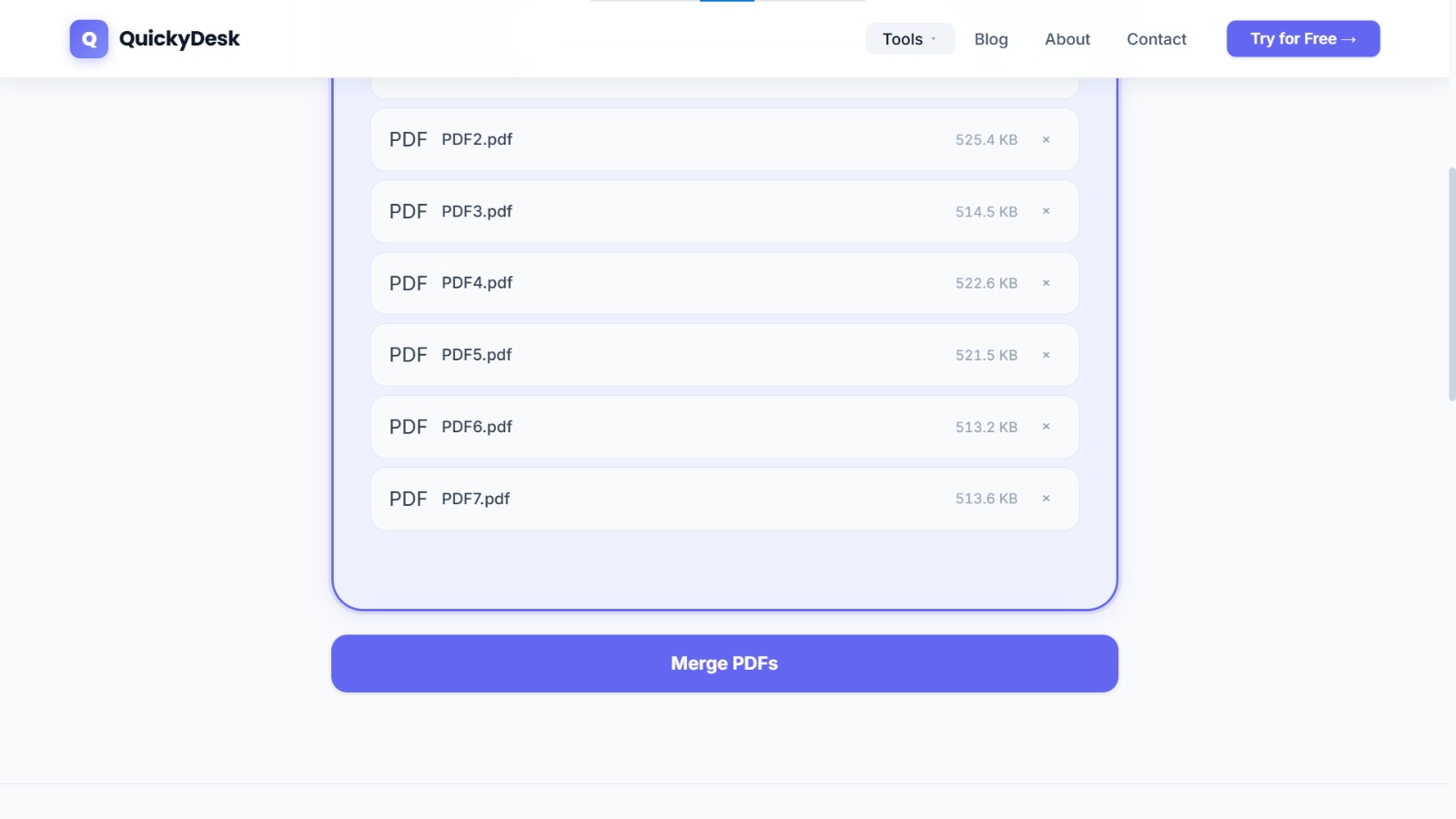
Once uploaded, you can reorder the files. The merged PDF will follow the sequence you set here, so make sure page order looks right before proceeding.
Step 4 — Merge and download
Tap the Merge button. Processing takes a few seconds. When it's done, tap Download — the combined PDF will save to your Downloads folder or the Files app, depending on your settings.
No login. No watermark on output files. No app download.
How to Merge PDFs on Android — Step by Step
The process is identical on Android. Open Chrome (or any browser) and navigate to quickydesk.com/merge.
Step 1 — Open the tool in Chrome
Go to quickydesk.com/merge on your Android phone.
Step 2 — Upload your files
Tap Upload and select your PDFs from your device storage, Google Drive, or wherever they're saved. You can select multiple files at once.
Step 3 — Reorder if needed
Arrange the uploaded files into the correct order before merging — getting the sequence right saves you from having to redo it.
Step 4 — Tap Merge, then Download
The tool combines everything into one PDF. Hit Download and it saves directly to your phone. Done.
Merge your PDFs now — free on any phone
No app, no login, no watermark. Works on iPhone and Android.
Merge PDF Files Free →Tips for Cleaner PDF Merging
- Name your files logically before uploading. If you're merging several documents, rename them in order (e.g., "01_cover.pdf", "02_resume.pdf") so you can arrange them quickly.
- Compress large files before merging. If you're combining several heavy PDFs, compress each file first before uploading. The merged result will be much more manageable to send or upload.
- Check page orientation before merging. If some files are portrait and others are landscape, the merged PDF will mix orientations. Worth knowing before you send it.
- Use a stable Wi-Fi connection for large files. Mobile data can be slow or interrupted with large uploads. Wi-Fi gives you a faster, more reliable experience.
FAQ
Can I merge PDFs on iPhone without downloading an app?
Yes. QuickyDesk runs entirely in your browser — Safari, Chrome, Firefox, it doesn't matter. There's nothing to install and no account to create. No sign-up required.
Do I need a Google account or Apple ID to use this?
No account of any kind is required. Open the site, upload your files, and merge — that's it.
How many PDF files can I merge at once?
You can upload multiple files in one session. Just select all the PDFs you want to combine during the upload step.
Will the merged PDF have a watermark on it?
No. QuickyDesk never adds watermarks to your files. What you download is a clean, unbranded PDF.
Where does the merged file save on my phone?
After tapping Download, the file saves to your device's default Downloads folder. On iPhone, you'll find it in the Files app. On Android, check your Downloads folder in the file manager.
Can I merge a CV and cover letter into one PDF on my phone?
Yes. Upload both files to QuickyDesk's merge tool, arrange them in the order you want (cover letter first, then CV), and download the combined PDF. Takes under a minute, no app needed.
Conclusion
Whether you're on an iPhone or Android, merging PDFs from your phone takes less than a minute with the right tool. No app required, no account, no watermark on output files.
Go to quickydesk.com/merge on your phone's browser, upload your files, arrange them in the right order, and download your combined PDF.
If your combined PDF ends up on the large side, run it through the free PDF compressor to bring the file size down before sharing. All other QuickyDesk tools work on mobile too — see the full tools directory for the complete list, including options to password-protect or watermark your merged file.