It's eleven-fifteen at night. The assignment is due at midnight. You've done the work — every problem, every diagram, every written response — and you've turned it into a PDF. You log into Canvas, upload the file, watch the progress bar crawl across the screen, and then: upload failed.
The most common culprit is file size. School portal upload limits are stricter than most students realize, and scanned or photographed assignments are almost always larger than necessary. The fix takes under two minutes.
Why School Portals Have Upload Limits
Learning Management Systems — Canvas, Google Classroom, Blackboard, Moodle — enforce upload limits for a mix of technical and administrative reasons:
- Server storage and cost — a platform hosting tens of thousands of student submissions has to manage storage carefully.
- Bandwidth during peak periods — submission deadlines create traffic spikes. Large file uploads slow the system for everyone.
- Instructor-configured caps — even if the platform allows large files, individual instructors can set their own assignment-level limits, sometimes much lower than the platform default.
Why Scanned and Photographed Assignments Are So Large
Photos taken on a smartphone
Modern smartphones take photos at 12–50 megapixels. A single photo of a handwritten page is approximately 3–6 MB. Five pages of math homework photographed on a recent iPhone can produce a PDF that's 20–30 MB before any optimization.
Scanned documents from home printers
Home scanner defaults are often set to 300 DPI color scanning — appropriate for archiving photographs but overkill for black-and-white handwritten assignments. A 10-page scanned assignment at 300 DPI color can easily be 15–25 MB.
How Much Can You Compress a Scanned Assignment?
| Source File | After Compression | Reduction |
|---|---|---|
| 5 photographed pages (iPhone, 12MP) | ~2–4 MB | 70–85% |
| 10-page home scanner (300 DPI color) | ~3–6 MB | 75–85% |
| 10-page home scanner (300 DPI grayscale) | ~2–4 MB | 65–80% |
| Typed PDF exported from Word | ~200–500 KB | 30–60% |
Step-by-Step: Compressing Your Assignment PDF
- Have your PDF ready. If your assignment is currently phone photos or scanned images, convert them to PDF first using QuickyDesk's Image to PDF tool.
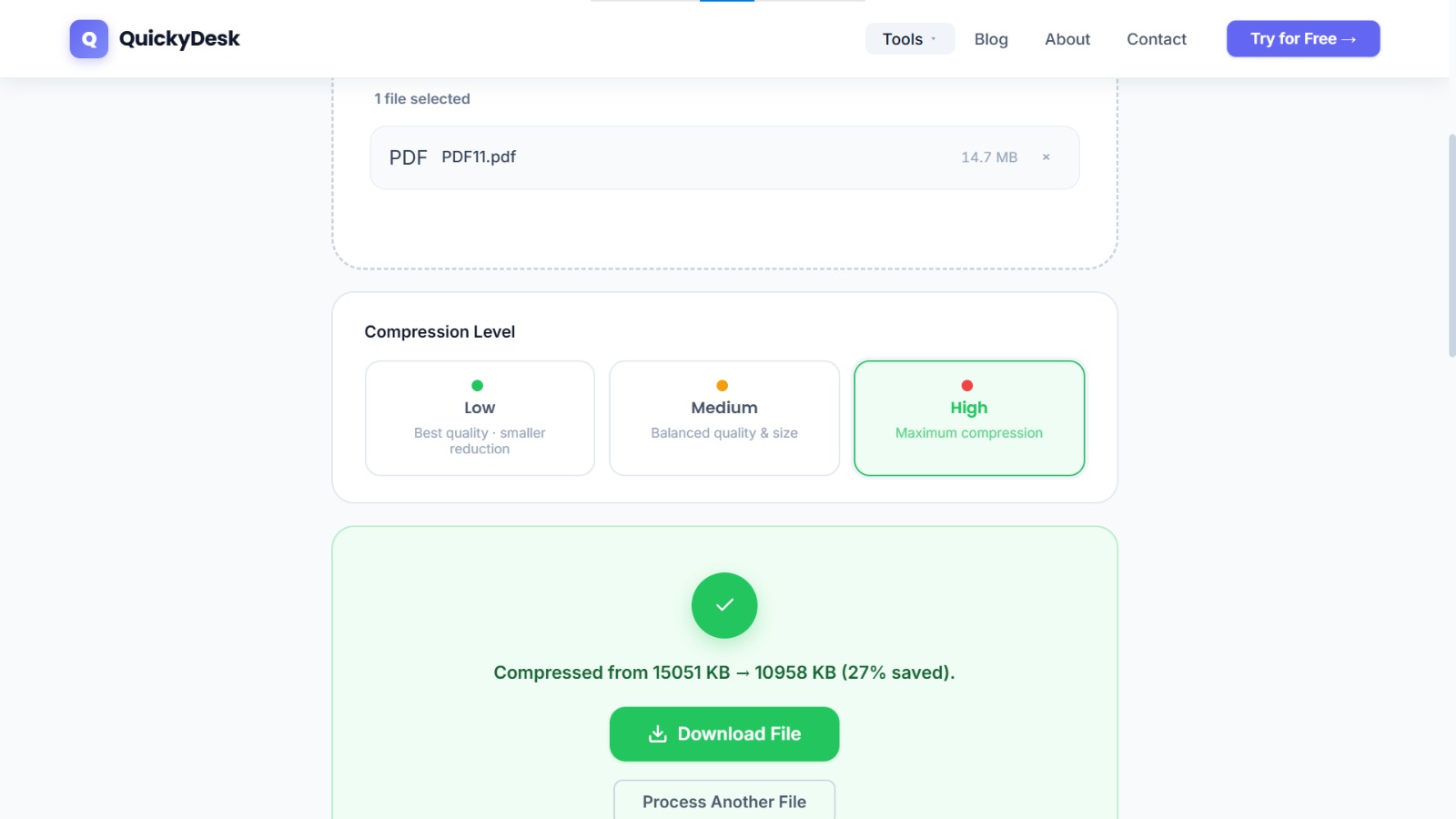
- Open QuickyDesk's Compress PDF tool. No registration, no email, no waiting for a verification link.
- Upload your assignment PDF. The upload connection is secured, and your assignment isn't visible to anyone else.
- Download the compressed file. QuickyDesk displays the compressed file size before you download — confirm it's within your portal's limit.
- Upload to your LMS. Log back into Canvas, Google Classroom, or your portal and re-attempt the submission.
Compress your assignment PDF now
Free, no login required. Results in under 30 seconds.
Compress PDF Free →LMS Upload Limits: What to Expect
- Canvas — no hard file size limit at the institutional level, but instructors can configure per-assignment caps. Look for a file size note in the assignment description.
- Google Classroom — supports large files through Google Drive, but direct uploads may be subject to lower limits depending on browser and connection.
- Blackboard — typically allows up to 100 MB per file, but some institutions configure tighter limits.
- Moodle — upload limits are set by site administrators. Stay under 10 MB as a safe default if you can't find the stated limit.
A Submission Checklist for the Final Minute
- Compressed file is under the portal's stated limit (or under 10 MB if unknown)
- Opened the compressed PDF and confirmed all pages are present and legible
- Handwriting is readable — not blurred or pixelated after compression
- Pages are in the correct order
- File is named per your instructor's convention (if specified)
- Submission confirmation email or receipt saved or screenshotted
What If the File Is Still Too Large After Compression?
Split the assignment into parts — if the portal allows multiple file uploads for one submission, use QuickyDesk's Split PDF tool to divide the document into two or three smaller sections.
Reduce scan resolution at the source — switch your home scanner from 300 DPI color to 150 DPI grayscale for handwritten text. For assignment content, 150 DPI grayscale is more than sufficient for readability.
For a full workflow starting from phone photos, see our guide on converting homework photos to a PDF.
QuickyDesk offers a complete free PDF toolkit — merge, split, compress, convert, protect, watermark, and more. No account required, no watermarks.
FAQ
Will compression make my handwriting harder to read?
For typical compression levels, no — the difference is imperceptible at screen viewing sizes. Always open the compressed file and check a few lines of handwriting before submitting.
My instructor said submit as PDF. Will a compressed PDF still be a valid PDF?
Yes. A compressed PDF is still a standard PDF file — just stored more efficiently. Content, formatting, and page structure are identical to the original.
Can I compress a PDF on my phone without a computer?
Yes. QuickyDesk works in mobile browsers on both iOS and Android without any app installation. Open the Compress PDF tool in Safari or Chrome, upload the file, and download directly to your device.
I submitted the wrong file and need to resubmit. Does Canvas allow this?
Most LMS platforms allow resubmission until the deadline. On Canvas, go to the assignment page and look for a "Re-submit Assignment" button. Check your course settings or contact your instructor if unsure.
Does compressing an assignment PDF affect the submission timestamp?
No. The timestamp is recorded by the portal at the moment of upload — it has nothing to do with the file itself.