Last updated: February 2026
It's 10:45 PM. The assignment is due at 11:59. You've finished the work — five pages of handwritten maths problems, a chemistry lab report, or a hand-drawn diagram — and you've taken photos of all of them on your phone. The submission portal asks for one PDF.
This exact scenario plays out every night in households with students, and it trips people up every time. The solution takes about two minutes once you know the steps.
Why Teachers Ask for PDFs Instead of Photos
It might seem like sending five JPEGs would be fine — your teacher can just open them one by one. But from the grading side, loose images create real workflow problems.
- Files arrive out of order. Most email clients and portals sort attachments alphabetically. If your photos are named IMG_4821, IMG_4824, IMG_4819, IMG_4823, IMG_4822, they'll arrive in alphabetical order — which is completely different from the order you photographed them. Your teacher opens what they think is page 1 and gets page 3 instead.
- Each image opens in a separate window. Grading becomes a game of window management. A single PDF scrolls naturally from top to bottom, which makes the grading process faster and reduces the chance a page gets missed.
- Image files are often enormous. A single photo taken on a modern smartphone is typically 2–5 MB. Five photos is 10–25 MB — too large for many school portals and email systems. A properly converted PDF from those same photos is usually 1–4 MB.
- Portals often block image uploads entirely. Canvas, Google Classroom, Blackboard, and Moodle usually accept PDF, DOCX, and a few other formats. Raw JPG and PNG uploads are frequently disabled in assignment submission settings.
Getting Your Photos Ready Before Converting
The two minutes you spend on photo quality before converting will significantly improve the final PDF.
Lighting matters more than anything else
Even lighting is the difference between a readable scan and a washed-out mess. Natural daylight from a window is ideal. If you're working at night, position your lamp to eliminate harsh shadows — especially if the page has content near the margins. Avoid shooting under a direct overhead light, which creates a bright spot in the centre and shadows at the edges.
Keep the page flat
Curved pages from a spiral notebook create distorted text at the edges. Press the pages flat against a table. If you're photographing a notebook, place a book underneath to hold the spine flat.
Fill the frame, but leave a small border
Position the camera directly above the page so it fills most of the viewfinder. Leaving a small margin of the desk surface around the page gives the image context and helps the PDF look clean. Shooting at an angle creates trapezoid distortion that makes text harder to read.
Check focus before moving on
Tap the screen on the text before taking each shot. On most smartphones, this tells the camera to focus on that point. Blur is the most common reason homework photos get marked unreadable.
Name your files in order
If your phone saves images as IMG_XXXX, rename them to Page1, Page2, Page3 before uploading. This takes thirty seconds in your photo app or file manager and eliminates any ordering confusion during conversion.
How to Convert the Photos to a PDF Using QuickyDesk
QuickyDesk's Image to PDF converter works directly in your browser — no app download, no account, no cost.
Step 1
Open quickydesk.com/convert in your phone's browser or on a computer.
Step 2
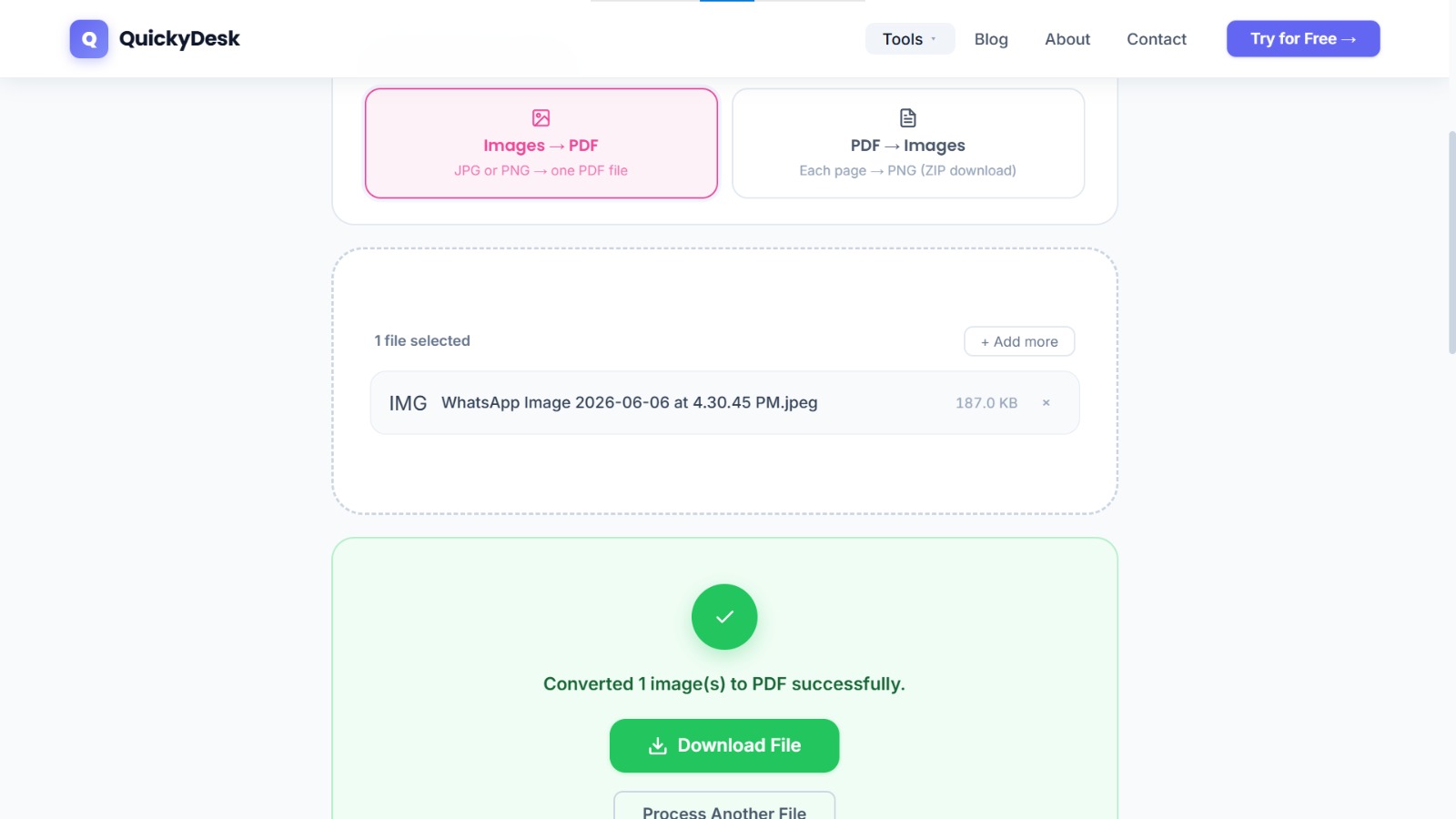
Upload your homework photos. You can upload multiple images at once. The tool accepts JPG and PNG files.
Step 3
Check the order. Your images will appear in the upload queue. Confirm that Page 1 is at the top and the sequence runs in the correct order. If anything is out of sequence, drag to reorder before proceeding.
Step 4
Click Convert. The tool compiles your images into a single PDF document, with each photo as one page.
Step 5
Download the PDF and open it on your device to do a quick visual check. Scroll through all pages to confirm everything is in order and readable before you submit.
The entire process from opening the tool to downloading the finished PDF typically takes under two minutes.
Convert your homework photos to PDF now
Free, no login required, no watermark — works on any phone or computer.
Convert Images to PDF Free →Submitting on a Deadline: What to Do If the PDF Is Too Large
Smartphone photos converted to PDF can sometimes create files that are larger than a school portal's upload limit — particularly if you took the photos at full resolution on a recent phone model.
If the portal rejects the file for being too large, run the PDF through the free Compress PDF tool immediately after downloading. For homework submissions, compression typically brings a 15 MB image-based PDF down to 2–4 MB without any visible change in readability at screen viewing sizes.
This two-step workflow — convert, then compress if needed — reliably handles any portal size limit you're likely to encounter.
Using QuickyDesk on a Phone
The full Image to PDF workflow works on mobile browsers without installing anything. If you just took the photos on your phone, you don't need to transfer them to a computer first. Open quickydesk.com/convert in Safari or Chrome on your phone, tap to upload, select the photos directly from your camera roll, arrange them in order, and download the PDF.
The download will land in your phone's Files app (iPhone) or Downloads folder (Android), from where you can submit it directly to Canvas, Google Classroom, or email. For more mobile tips, our guide on merging PDFs on iPhone and Android covers similar workflows.
Why a PDF Is Better Than Raw Photos for Graded Work
Beyond the practical logistics, submitting as a PDF makes your work easier to grade — which is in your interest.
A PDF lets the teacher view all pages in a single document without managing separate files. It preserves the exact presentation you intended: no auto-rotation, no browser image compression, no colour shifts from different image viewers. If a teacher prints submissions for markup, a PDF prints predictably. Loose images don't.
There's also a professionalism dimension that matters as students get older. College professors, internship supervisors, and employers who ask for document submissions expect PDFs. Developing the habit early — taking photos, converting to PDF, verifying before submitting — is a skill that transfers well beyond middle school homework. For a broader look at digital document tools built for students, see PDF tools for students.
QuickyDesk offers a complete free PDF toolkit — merge, split, compress, convert, protect, watermark, and more. No account required, no watermarks.
FAQ
Can I upload PNG files, or only JPGs?
Both formats are supported. The Image to PDF tool on QuickyDesk accepts JPG and PNG files. If your screenshots or scans are in PNG format, you can upload them directly without converting.
How many photos can I combine into one PDF?
There's no hard cap on the number of images. Whether you have 3 pages or 20 pages of homework, you can upload them all in one batch and convert them into a single PDF.
My photos are in the wrong order in the PDF. What should I do?
Reorder them in the upload interface before clicking Convert. If you've already downloaded the PDF in the wrong order, it's fastest to go back to the tool, re-upload the images in the correct sequence, and generate a new PDF. It takes about 90 seconds.
Will the text in my homework photos be searchable in the PDF?
No — when photos are converted to PDF, each page is stored as an image, not as machine-readable text. The content is visible but not selectable or searchable. For that, you'd need OCR (Optical Character Recognition) software. For standard homework submission, this isn't an issue.
Does QuickyDesk add a watermark to the PDF?
No. QuickyDesk adds no watermarks, branding overlays, or any additional content to your files. The output PDF contains only the images you uploaded, compiled in the order you specified.