A commercial lease might be 80 pages. A software licensing agreement might run 45. An employment contract with exhibits and schedules might exceed 100 pages. When you need to isolate specific clauses — the limitation of liability section, the termination triggers, the non-compete scope — scrolling through an entire contract document is inefficient and error-prone.
The better approach: extract just the relevant pages as a standalone PDF for focused review or reference. Here's how to do it in seconds using QuickyDesk's free Split PDF tool.
When to Extract Contract Clause Pages
- Negotiation review — Isolating the disputed clauses for redline discussion without distributing the full contract.
- Client briefing — Extracting the key obligations sections to walk a client through what they're signing, without the distraction of boilerplate.
- Due diligence reference — Creating a quick-reference extract of representations, warranties, and indemnification clauses from an acquisition agreement.
- Dispute documentation — Extracting the breach-relevant clauses as a clean reference document for correspondence or litigation.
Find the Right Pages Before Extracting
Open the contract in any PDF viewer and use the search function (Ctrl+F or Cmd+F) to locate specific clause language. Note the page counter in the toolbar — not any printed page numbers inside the document, which may start from a different reference point. Write down the page ranges for each clause you need.
Extracting Contract Pages with QuickyDesk
Step 1: Open the Split Tool
Navigate to QuickyDesk's Split PDF tool in any browser. No software to install, no account required.
Step 2: Upload the Contract PDF
Contract documents contain sensitive commercial and personal information. QuickyDesk processes files over encrypted HTTPS and does not retain them after the session ends.
Step 3: Enter the Page Range
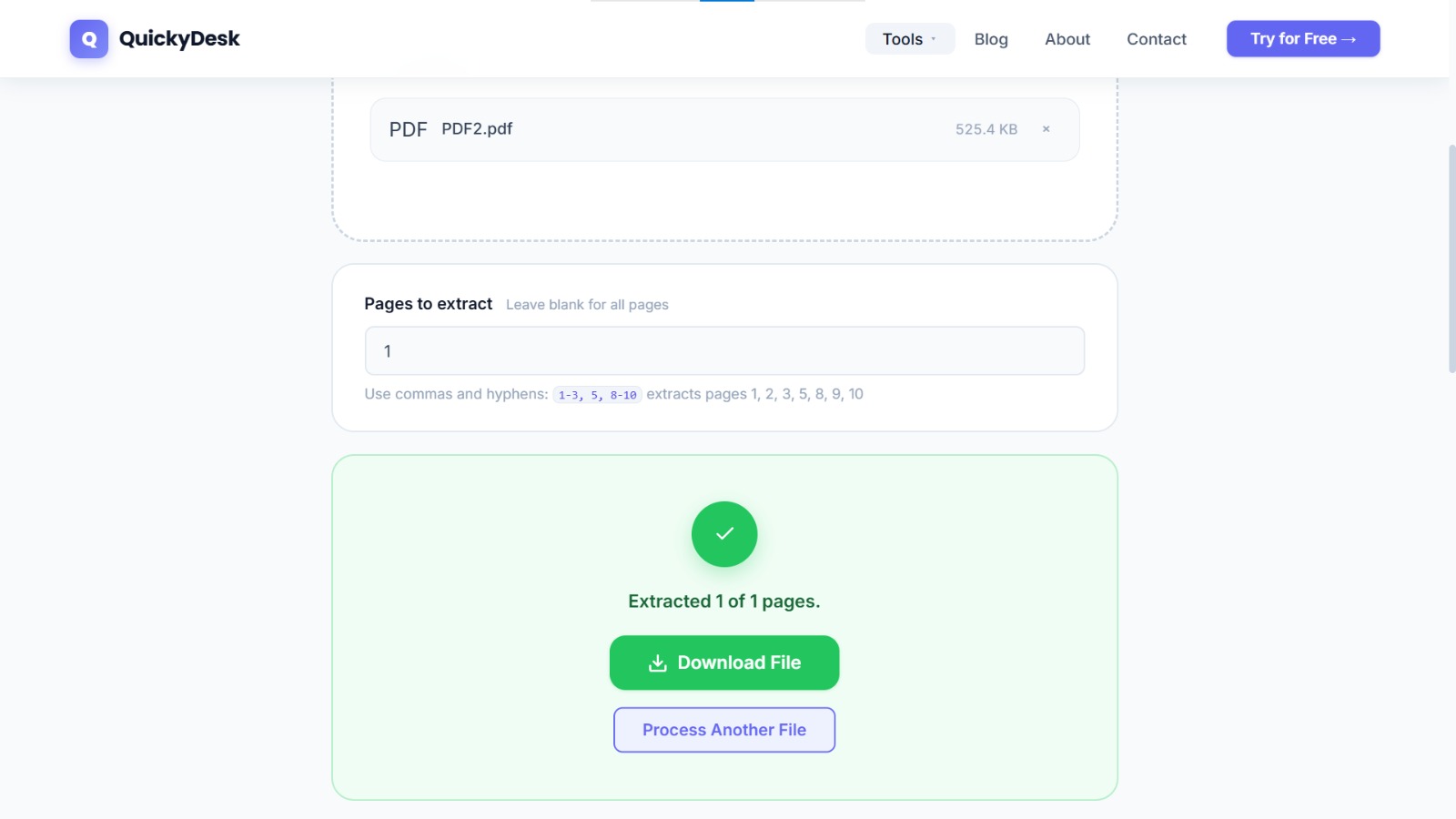
Enter the pages or ranges you identified. For non-consecutive clause pages, use comma-separated notation:
- Limitation of liability on pages 12–14: enter
12-14 - Termination triggers on page 22, non-compete on pages 28–29: enter
22, 28-29 - Combination:
12-14, 22, 28-29
Step 4: Download the Extract
The resulting PDF contains all specified pages in sequence. Name the file descriptively: ServiceAgreement_LimitationLiability_NonCompete_Extract.pdf
Why Extract Clauses Instead of Sharing the Whole Contract
Sending an entire executed agreement to answer one question exposes pricing, payment terms, and other parties’ details that the recipient has no need to see. Pulling out just the relevant pages — the indemnification clause, the termination terms, a specific schedule — keeps the rest confidential and makes the point faster.
A few practical notes:
- Capture the full clause. Clauses often continue across a page break; extract the complete range so meaning isn’t lost.
- Include defined terms. If a clause relies on definitions earlier in the contract, add that page too, or the excerpt may be ambiguous.
- An excerpt isn’t the agreement. For anything binding, reference the source contract rather than relying on the extract alone.
Merging Multiple Contract Extracts
If you need to compile extracts from multiple contracts — for example, a comparison of indemnification clauses across several vendor agreements — extract the relevant pages from each contract separately, then use QuickyDesk's Merge PDF tool to combine all extracts into a single comparison document. For sensitive legal extracts shared with external parties, password-protecting the compiled PDF limits access to authorised recipients.
QuickyDesk offers a complete free PDF toolkit — merge, split, compress, convert, protect, watermark, and more. No account required, no watermarks.
Frequently Asked Questions
Does extracting pages from a contract affect the original document?
No. QuickyDesk's Split tool extracts a copy of the specified pages into a new PDF. The original file you uploaded is not modified in any way.
What if the clause I need spans two pages?
Enter both pages in your range — for example, 14-15 — and the extracted PDF will contain both pages in sequence.
Can I extract non-consecutive pages from a contract PDF?
Yes. QuickyDesk's Split tool accepts comma-separated ranges. Enter page numbers like 5, 12-14, 22 to extract specific pages and ranges into a single extracted PDF.