Most people discover the problem at the worst possible moment — an hour before a report is due, trying to drop a single page from a PDF into the middle of a Word document. They go to Insert → Object → PDF, wait through a slow rendering process, and get back a thumbnail that looks fine in Word's editing view. Then they send it and the embedded page is blurry, misaligned, or showing as a generic placeholder icon on the recipient's machine.
Microsoft Word was not designed to cleanly embed PDF content as a native page element. There's a reliable workaround, and once you know it, it takes about three minutes.
Why Word's Native PDF Embedding Doesn't Work Well
When you use Insert → Object → Create from File in Word and select a PDF, Word renders the PDF using whatever PDF handler is installed on your system. The result is an embedded OLE object — essentially a screenshot taken at low resolution and wrapped in a proprietary container format.
This creates several problems:
- The resolution is unpredictable. Word renders at screen resolution — often 96 DPI — far below the 300 DPI needed for clean printing.
- Multi-page PDFs embed as a single compressed thumbnail or show a generic "PDF document" icon the recipient has to double-click.
- Compatibility varies by machine. If the recipient doesn't have the same PDF renderer, the object may not display at all.
- File size inflates dramatically. OLE-embedded PDFs are stored as complete files inside the Word document.
The Clean Solution: Convert First, Insert as Image
The workaround is simple: instead of embedding the PDF directly, convert the target page to a high-resolution PNG image first, then insert the image into Word. PNG images embed cleanly at full resolution, display consistently on any machine, and print crisply.
Step 1 — Extract the Target Page (If Needed)
If you only need one page from a multi-page PDF, extract that page first using QuickyDesk's Split PDF tool: upload your document, enter the specific page number, and download the single-page PDF.
Step 2 — Convert the PDF Page to a PNG Image
Open QuickyDesk's PDF to Images tool. Upload your PDF. The tool converts each page to a high-resolution PNG file and packages them in a ZIP archive for download. Extract the ZIP — you'll have one PNG per page.
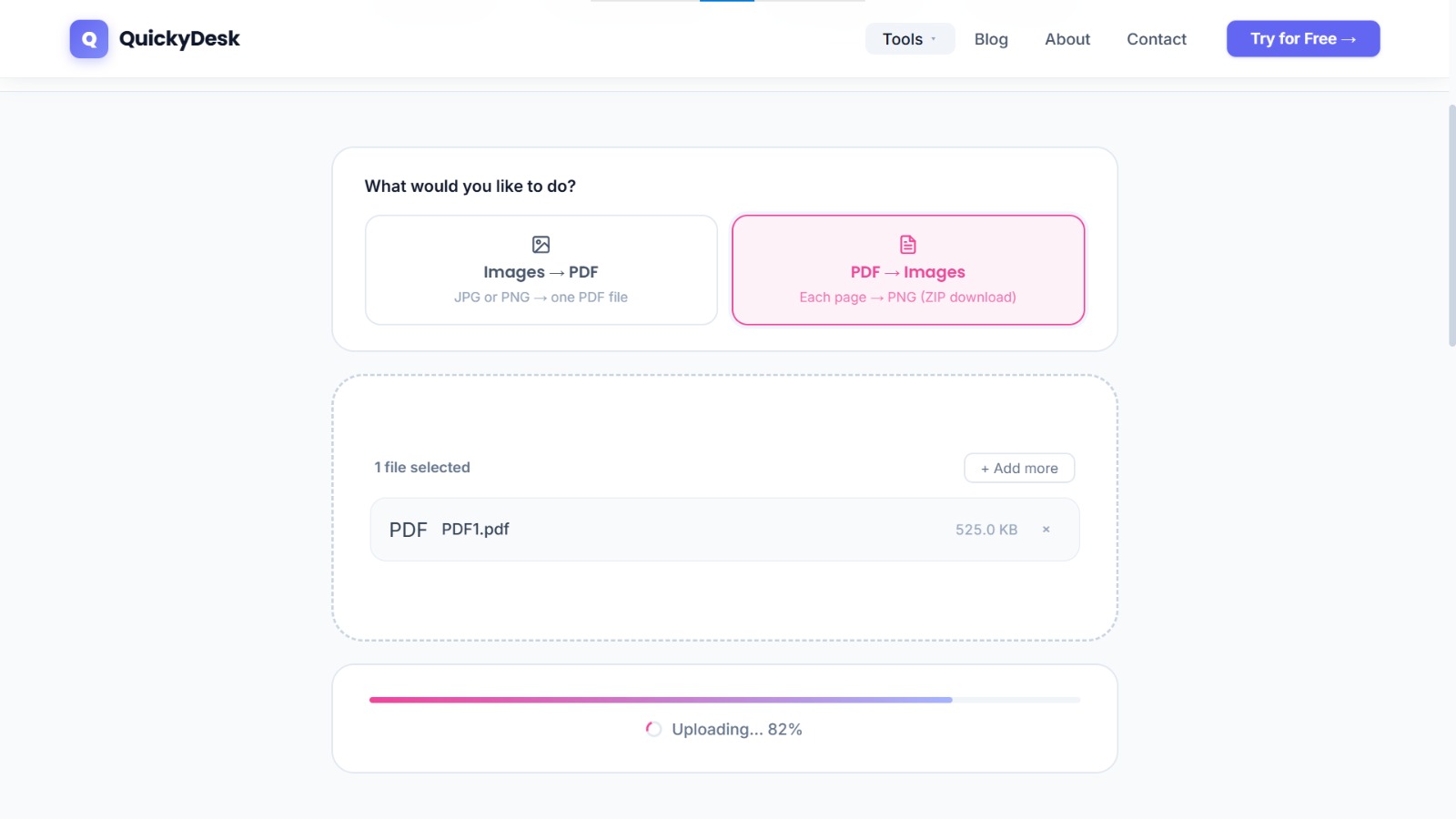
Convert your PDF page to PNG
Free, no login required. High-resolution output for clean Word insertion.
Convert PDF to Image →Step 3 — Insert the PNG into Microsoft Word
Open your Word document and position your cursor at the point where you want the PDF page to appear. Go to Insert → Pictures → This Device (or Insert → Pictures → From File on older versions). Select the PNG file and click Insert.
Step 4 — Adjust Text Wrap and Sizing
Text Wrap settings: Click the image to select it. Click the Layout Options button at the top-right corner and choose your wrap type:
- In Line with Text — good for full-page inserts where the PDF page should occupy its own visual space.
- Top and Bottom — text sits above and below the image. Often the cleanest option for inserting a full page from a PDF.
Sizing without distortion: Drag from corner handles only — not the side handles. Dragging from a corner preserves the aspect ratio. For precise sizing, right-click the image → Size and Position → confirm "Lock aspect ratio" is ticked.
Tips for the Best Output Quality
- Don't scale the PNG larger than the original — PNG images are fixed-resolution rasters. Stretching beyond native dimensions reduces sharpness.
- Use PNG, not JPEG — PNG uses lossless compression, important for text and fine lines.
- Verify the final file at 100% zoom before submitting or sending.
QuickyDesk offers a complete free PDF toolkit — merge, split, compress, convert, protect, watermark, and more. No account required, no watermarks.
FAQ
Can I insert multiple PDF pages into Word using this method?
Yes. Convert the PDF — the tool generates one PNG per page. Download the ZIP, extract it, and insert each PNG in the appropriate order.
The PNG image appears blurry in Word. What's wrong?
Word sometimes displays images at reduced quality in editing mode. Go to File → Options → Advanced → Image Size and Quality and ensure "Do not compress images in file" is checked. Also verify you're viewing at 100% zoom.
Will the inserted image be searchable as text?
No — once a PDF page is converted to PNG and inserted into Word, the content is an image. The text is not searchable or selectable within the Word document.
Does this method work on Word for macOS?
Yes. The Insert → Pictures workflow is functionally identical on Mac. PNG files insert cleanly at full resolution.
What if I need to insert a PDF page into Google Docs instead of Word?
Google Docs handles image insertion the same way — Insert → Image → Upload from computer. The same PNG file you'd use for Word works without modification.