A buyer from a boutique retail store emails you after seeing your work at a market. They're interested in carrying your products and ask you to send over your catalog. You have forty product photos on your phone, a rough price list in a Notes app, and no InDesign license, no Canva subscription, and no graphic design background.
You have everything you need. A PDF catalog doesn't require professional design software. What it requires is organized, well-shot product photos and a logical structure. Retail buyers review dozens of catalogs — they're looking at your products, not your layout software.
What Buyers Actually Need in a Product Catalog
A functional product catalog for wholesale or retail buyers typically includes:
- Product name and SKU — buyers reference these when placing orders.
- Clear product images — multiple angles for complex products, clean flat-lay or white-background images for simple ones.
- Wholesale price and retail suggested price — buyers need to calculate their margin.
- Materials and dimensions — essential for buyers assessing display requirements or shipping considerations.
- Minimum order quantities — state your MOQs clearly if you have them.
- Your contact details and lead times — how to place an order and how long fulfillment takes.
Getting Your Product Photos Ready
Background consistency
Pick one background and use it for everything — a plain white or off-white surface is the most professional default and works for most product categories. Mixing backgrounds creates a disjointed catalog.
Even, diffused lighting
Natural light from a large window with a white sheet or foam board reflector on the opposite side creates soft, even lighting that flatters most products. Overcast daylight is ideal.
Consistent framing and angle
Shoot every product from the same angle and fill the same portion of the frame. Consistency across all images makes the catalog feel intentional rather than assembled.
Naming images in order
Before importing into any tool, rename your photos so they sort in the order you want them to appear: 01_ceramic_mug_blue.jpg, 02_ceramic_mug_green.jpg, 03_ceramic_bowl_large.jpg. This prevents scrambling the sequence at the upload stage.
Building the Catalog PDF Using QuickyDesk
- Prepare your cover page (optional but recommended). A simple cover page with your brand name and catalog period signals professionalism. Create it in Canva for free, export as a JPG or PDF, and place it first in your upload queue.
- Open the Image to PDF tool from QuickyDesk.
- Upload your product photos. Select all your renamed product images and upload them simultaneously.
- Verify the order in the queue. Confirm products appear in the intended sequence — by category, product line, or recommended order. Drag to reorder if needed.
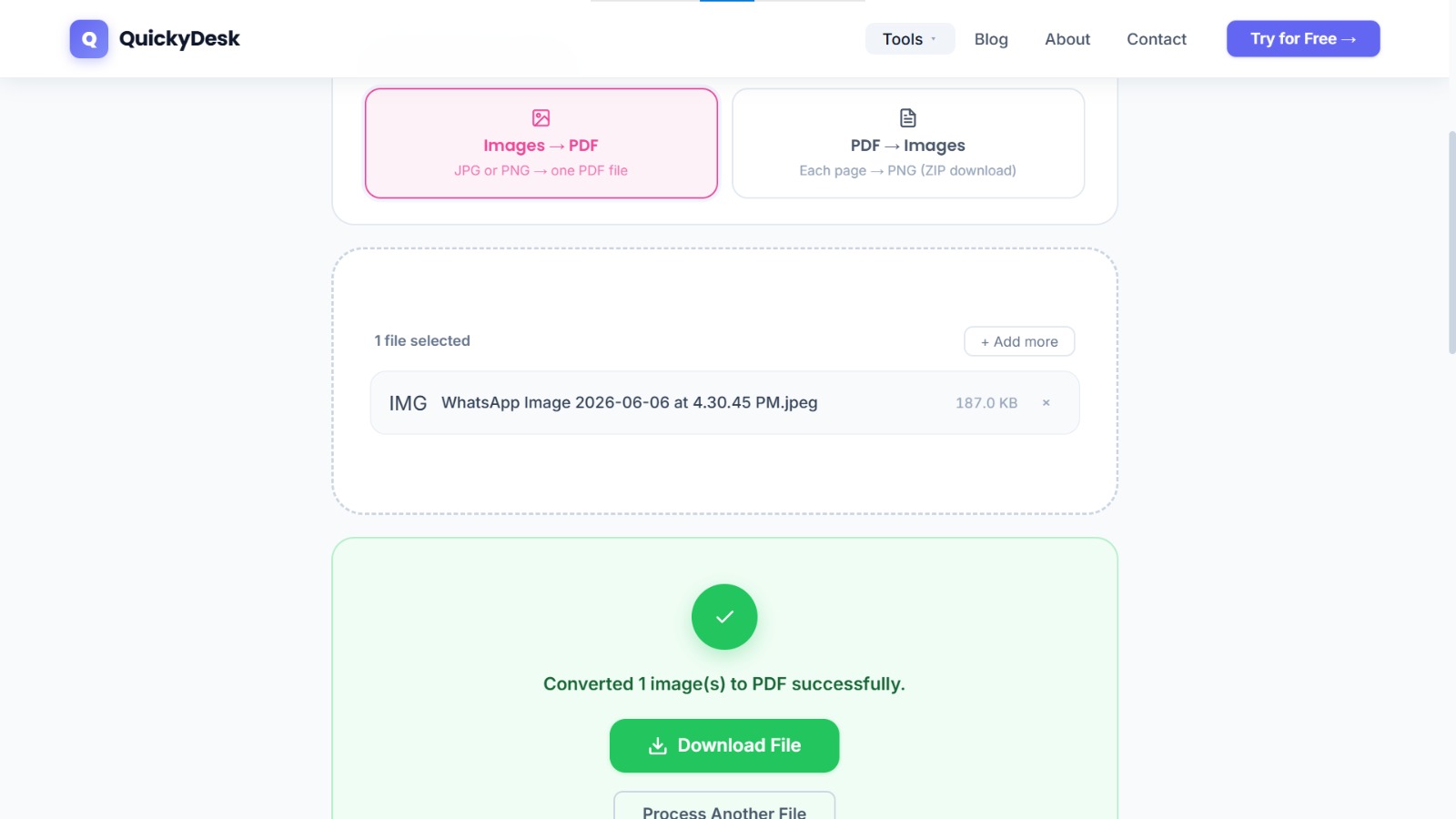
- Convert and download. The tool compiles all images into a single PDF, one product photo per page.
- Open the file and do a visual check. Scroll through every page and confirm image quality, ordering, and completeness.
Build your product catalog PDF
Free, no login required. JPG and PNG photos accepted.
Image to PDF Free →Adding Product Details to Each Page
For a more complete single-document catalog, consider a hybrid approach:
- Option A: Pre-annotated images — annotate each product photo with text overlays (product name, SKU, price) in Canva or your phone's photo editor before uploading.
- Option B: Paired image-and-text pages — create text pages in Canva or Google Docs, export as PDF, and use QuickyDesk's Merge PDF tool to interleave image pages with detail pages.
- Option C: Separate documents — distribute the image catalog alongside a separate price list. Many wholesale buyers prefer this format because they can annotate the price list separately while browsing the catalog.
Final Catalog Checklist Before Sending
- All products are included and in the intended order
- Images are consistently shot and cropped
- Product names and SKUs are identifiable
- Contact information and ordering instructions are clear
- File is named professionally:
BrandName_WholesaleCatalog_SS2026.pdf - File size is appropriate for email — under 15 MB
If the catalog is over 15 MB, run it through QuickyDesk's Compress PDF tool before sending. Product photo PDFs compress well — a 40 MB catalog often comes down to 8–12 MB without any perceptible change in image quality at screen viewing sizes.
For related workflows, see our guide on converting images into a single PDF document.
Where and How to Share the Catalog
- Direct email attachment — for catalogs under 15 MB, attach directly to the email with a brief introductory message.
- Google Drive or Dropbox link — for larger catalogs, upload to a cloud drive and share the link with "Anyone with the link can view."
- LinkedIn Document Post — LinkedIn allows PDF uploads as native document posts, which render as an in-feed swipeable catalog for brand visibility.
- Your website — embedding a PDF catalog on your wholesale page gives inbound buyers a direct download option.
QuickyDesk offers a complete free PDF toolkit — merge, split, compress, convert, protect, watermark, and more. No account required, no watermarks.
FAQ
My photos are in HEIC format from my iPhone. Can I upload them directly?
The Image to PDF tool works with JPG and PNG files. Convert HEIC files to JPG before uploading — on iPhone, go to Settings → Camera → Formats → Most Compatible to switch future photos to JPG.
How many product photos can I include in one PDF?
There's no fixed page limit. A catalog with 60 product images produces a 60-page PDF. For large catalogs, consider organizing products into categories and creating separate PDFs per category.
Can I include a clickable price order form inside the catalog PDF?
The Image to PDF tool creates a static PDF from image files. For a clickable order form, create the form in a PDF editor that supports form creation, then merge it with your catalog using the Merge PDF tool.
Should my product catalog be portrait or landscape orientation?
Portrait works best for most products because it matches how people scroll on phones and tablets. For most small product sellers, portrait is the safe default.
The buyer asked for a catalog in a specific template format. Can I help with that?
If the buyer has a required template, you'll need to fill in their form rather than create a custom catalog. Ask for their supplier template file and populate it according to their instructions.