Court e-filing systems — PACER/CM-ECF for federal courts, state-level eFiling portals, and platforms like Tyler Technologies' File&ServeXpress — require exhibits to be submitted as properly organized PDF files. A disorganized or oversized exhibit submission can result in rejection or clerk's office corrections that delay proceedings.
Here's how to assemble exhibit PDFs correctly for court filing using QuickyDesk's Merge PDF tool.
Before You Merge: Check Court Local Rules
Every court has local rules governing PDF submissions. Common requirements include:
- File size limits (PACER/CM-ECF: 50 MB per attachment; many state courts: 10–25 MB)
- Whether exhibits should be filed as separate attachments or consolidated
- Required exhibit labeling and tab conventions
- Whether a table of contents is required for multi-exhibit filings
- Bookmark requirements for exhibits over a certain page count
Preparing Exhibit PDFs for Merging
Before uploading to the merge tool, prepare each exhibit:
- Add an exhibit cover page (e.g., "Exhibit A — Purchase Agreement") as the first page of each exhibit
- Convert any photos or images to PDF using QuickyDesk's Convert tool
- Verify each exhibit PDF is complete and correctly oriented
- Name files consistently:
Exhibit_A_PurchaseAgreement.pdf,Exhibit_B_Correspondence.pdf
Merging Court Exhibits with QuickyDesk
Step 1: Open the Merge Tool
Navigate to QuickyDesk's Merge PDF tool in any browser. No account required.
Step 2: Upload Exhibits in Order
Upload the table of contents page first (if required), then each exhibit in alphabetical or numerical order as specified by the court's local rules.
Step 3: Verify the Sequence
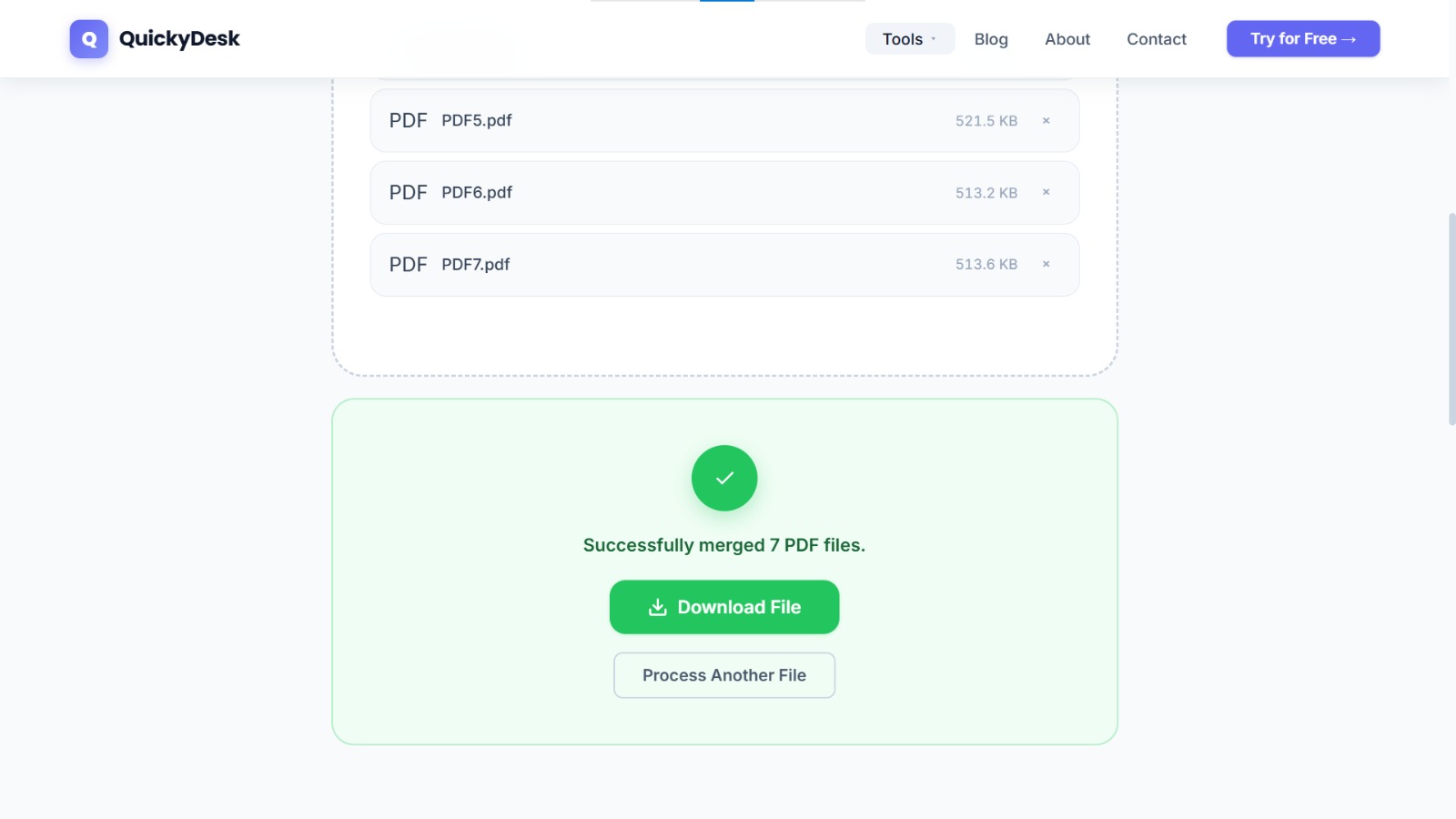
Confirm the upload queue shows exhibits in the correct sequence before merging.
Step 4: Merge and Check File Size
Download the merged PDF and check the file size. If it exceeds the court's limit, compress the merged PDF before filing. Always verify the compressed file retains legibility of all text and signatures.
Common Mistakes to Avoid
Exhibit bundles are easy to assemble incorrectly under filing pressure. Watch for these:
- Wrong order. Exhibits must follow the sequence referenced in your motion. Confirm the file list matches Exhibit A, B, C… before merging — reordering after the fact means starting over.
- Missing exhibit separators. Many courts expect a labelled cover or tab page before each exhibit. Add those pages to the individual PDFs before you merge.
- Oversized output. Photo-heavy exhibits can push the bundle past an e-filing size cap. Compress image exhibits first, then merge.
- Ignoring local rules. Some courts want each exhibit filed separately rather than as one document. Check the standing order before combining everything.
Assemble your court exhibits now
Free, no account required, no watermarks on output.
Merge PDF Files Free →After Merging: File Size Management
If your merged exhibit PDF exceeds the court's file size limit, use QuickyDesk's Compress PDF tool to reduce the file size. Always verify the compressed file is fully legible before submission — particularly for signatures, stamps, and any handwritten notations. For copies shared with opposing counsel before a hearing, consider password-protecting the PDF to control access until the appropriate disclosure window.
QuickyDesk offers a complete free PDF toolkit — merge, split, compress, convert, protect, watermark, and more. No account required, no watermarks.
Frequently Asked Questions
Do federal courts have a file size limit for e-filed PDFs?
PACER/CM-ECF has a 50 MB file size limit per attachment. State court limits vary; many range from 10–25 MB. If your merged exhibit PDF exceeds the limit, compress it before filing.
Should exhibit tabs be separate PDFs or merged into one filing?
Most courts require each exhibit to be filed as a separate attachment with a clear exhibit label. Check your court's local rules before merging — some courts permit a single consolidated exhibit PDF with a table of contents.
Can I merge photos and document PDFs together into one exhibit file?
Yes. QuickyDesk merges any combination of PDF files regardless of content type. Photos converted to PDF via the Convert tool can be merged with document PDFs without any issues.