Last updated: January 2026
You typed out a careful email, attached the PDF, and hit send — only for a bounce-back to land in your inbox thirty seconds later: "Attachment size limit exceeded." It's one of the most disruptive little moments in an otherwise normal workday, especially when something time-sensitive is on the line.
The good news is that it's almost always fixable in under a minute. Here's exactly what's happening and how to get that file through.
Why Email Services Reject Large Attachments
Every major email provider enforces a maximum attachment size. These limits aren't arbitrary — they exist to protect server storage and prevent slow load times for recipients on mobile data. The problem is that the limits haven't kept pace with how heavy modern PDFs can get.
| Email Service | Maximum Attachment Size |
|---|---|
| Gmail | 25 MB |
| Outlook / Hotmail | 20 MB |
| Yahoo Mail | 25 MB |
| iCloud Mail | 20 MB |
| Corporate Exchange (typical) | 10–20 MB |
Note that these limits refer to the encoded attachment size, not the raw file size on your hard drive. Email clients encode attachments in Base64 before sending, which inflates the effective size by roughly 33%. In practice, a 15 MB PDF can behave like a 20 MB attachment inside your email client — enough to trigger a rejection even when it looks small in your file explorer.
Why PDFs Balloon in Size
Understanding the cause helps you pick the right fix. PDFs grow large for several distinct reasons:
High-Resolution Scans
When you scan a physical document using a home scanner or a multifunction office printer, the machine captures the page as a high-resolution image — often at 300 DPI or higher. A 10-page scan at 300 DPI can easily sit at 20–40 MB before you've even opened it.
Embedded Images and Graphics
Reports, brochures, and presentations with photographs, charts, or high-quality product images embed those visuals at their original resolution. A single full-page photo can add 3–5 MB on its own.
Redundant Font Data and Metadata
PDFs generated by older or poorly configured software sometimes embed full font families (including every character the font supports) even if only a handful of glyphs are actually used in the document. They can also carry verbose metadata — document history, author information, revision logs — that quietly adds weight.
Uncollapsed Layers
Design tools like Adobe InDesign or Illustrator can export PDFs with layers preserved for editing purposes. These layered PDFs are dramatically larger than their flattened equivalents.
The Fastest Fix: Compress the PDF
The most direct solution is compression. A good PDF compressor strips redundant data, optimizes image streams, and collapses unnecessary structures — all without altering the text or deleting any content.
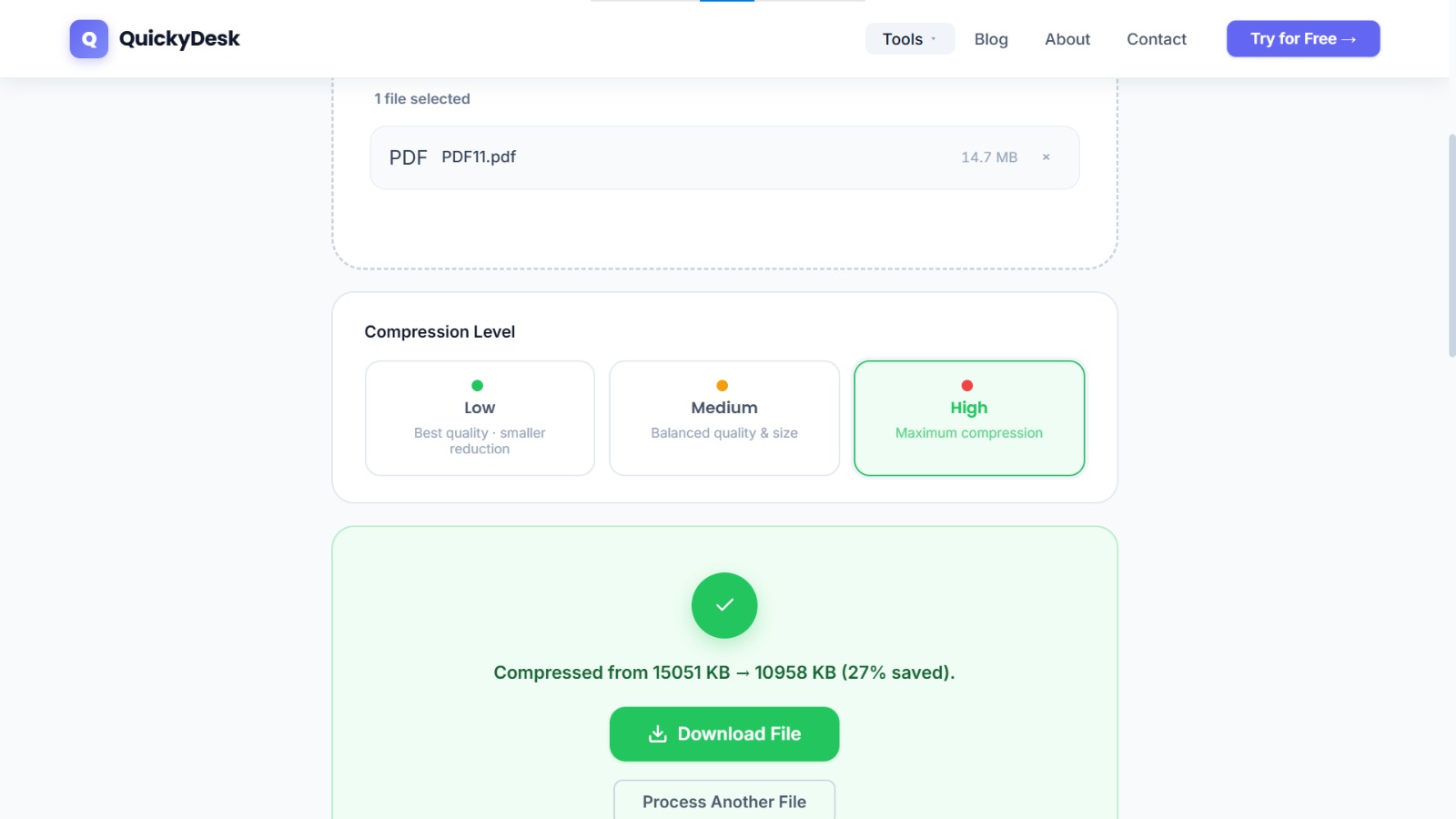
QuickyDesk's free Compress PDF tool handles this in seconds. Here's the process:
- Open the tool at quickydesk.com/compress. No account creation or sign-in required.
- Upload your file by dragging it onto the upload zone or clicking to browse.
- Wait for processing — for most documents this takes 5–15 seconds.
- Download the compressed file. QuickyDesk shows the new file size so you can immediately see how much was saved.
In testing on typical scanned office documents, compression regularly brings a 25 MB file down to 4–8 MB — well within any email provider's limit. For text-heavy PDFs (contracts, reports without heavy images), the reduction can be even more dramatic.
One thing worth knowing: QuickyDesk processes everything over HTTPS, and your uploaded file is automatically deleted from the server within 15 minutes. You're not leaving your documents sitting on a third-party platform indefinitely.
Does Compression Damage the PDF?
This is the most common concern, and it's a fair one. Nobody wants to send a compressed contract where the text has become blurry or a signature has smeared.
QuickyDesk uses PyMuPDF under the hood, which performs lossless compression on text and vector elements. Font streams, embedded links, and selectable text come through exactly intact. For images embedded within the PDF, the tool applies smart optimization that reduces file weight without making the images visibly degraded at normal viewing sizes. If you print the compressed file at standard settings, it will look identical to the original.
That said, if your PDF contains extremely fine-detail diagrams or photos that need to be printed at poster scale, it's always worth opening the compressed version and scrolling through it before sending.
Alternative Methods (and Their Trade-offs)
Compression is usually the right call, but two other approaches come up often:
Cloud Sharing Links (Google Drive, Dropbox, OneDrive)
Uploading the file and sending a share link sidesteps email size limits entirely. The downside: your recipient needs a Google or Dropbox account (or at minimum must click through to a browser), you need to manage access permissions, and the link can expire. It also adds friction for recipients who just want to open an attachment normally.
Zipping the File
A ZIP archive does compress files, but PDFs are already compressed internally, so ZIP rarely reduces PDF size by more than 1–5%. This approach is unlikely to solve the problem if the file is substantially over the limit.
For most situations, compressing the PDF directly is faster, cleaner, and less confusing for the person receiving it.
Before You Hit Send: A Quick Checklist
- Compressed file is under 20 MB (or under your recipient's specific server limit)
- Opened the compressed PDF and verified text is sharp and readable
- Images and signatures are intact
- File name is descriptive (e.g.,
Project_Proposal_June2026.pdf, notcompressed_final_v3.pdf) - You're sending from an email address with a large enough outbox limit
A Note on Corporate Email Servers
If you're emailing to a corporate address, be aware that the recipient's incoming mail server can impose its own size limit — separate from the sending limit of your own provider. Some corporate IT environments block attachments over 10 MB as a security policy. If Gmail happily sends your 18 MB file but the recipient never receives it, this is often the culprit.
When in doubt, aim to keep attachments under 10 MB for business correspondence. Our guide on reducing PDF size for email and uploads covers this scenario in more depth.
QuickyDesk offers a complete free PDF toolkit — merge, split, compress, convert, protect, watermark, and more. No account required, no watermarks.
FAQ
Does compressing a PDF change or remove the text inside it?
No. Text content, selectable characters, and embedded hyperlinks are not affected by compression. The process targets image data, font stream redundancy, and metadata bloat — none of which are visible to readers.
My PDF is only 8 MB but Gmail still rejected it. Why?
Gmail encodes attachments before sending, which increases their effective size. Your 8 MB PDF may appear as a 10–11 MB attachment to Gmail's servers. Compressing it to around 6 MB or less should resolve this reliably.
Is it safe to compress a PDF that contains a contract or signature?
Yes. Compression does not alter digital signatures embedded in the PDF metadata, and visible wet signatures (scanned images of pen-and-ink signatures) are preserved. Always verify the output visually before sending.
What if the PDF is still too large after compression?
For extremely image-heavy files, a single round of compression may not be enough. Consider splitting the document into sections using the Split PDF tool and emailing each part separately, or switch to a cloud sharing link for that specific file.
Does QuickyDesk keep my files after I download the compressed version?
No. All uploaded and processed files are automatically and permanently deleted from QuickyDesk's servers within 15 minutes. Nothing is retained or logged.
Conclusion
A PDF that's too large to email is almost always fixable in under a minute. Compression strips the redundant data that inflates file size — scanned image overhead, embedded font bloat, unnecessary metadata — without touching your actual content.
QuickyDesk's free PDF compressor handles this automatically, requires no account, and leaves no watermark on your file. If your document still exceeds the limit after one compression pass, see our full guide on reducing PDF size for free for further steps. And if the document contains sensitive content, consider password-protecting it before sending — email is not inherently secure.