Open a 600-page PDF textbook on a phone that's two or three years old and you already know what happens. The app takes fifteen seconds to launch the file. Scrolling to chapter 8 means waiting for pages to render progressively as you navigate. By the time you reach your reading position, the battery indicator has visibly dropped.
Splitting a large PDF textbook into individual chapters turns a performance problem into a file management decision. Each chapter file is 20–50 pages. It opens instantly. It searches instantly. It doesn't drain your battery faster than your reading speed.
Why Large PDFs Stress Mobile Devices
PDF rendering is page-by-page, but loading isn't
When a PDF reader opens a large file, it preloads surrounding pages for smooth navigation, generates thumbnails for the page panel, and indexes the text layer for search — all of which requires holding file data in active memory.
Scanned PDFs are image-heavy
Textbooks that were scanned rather than digitally typeset store each page as a compressed image. A 500-page scanned textbook can be 150–400 MB. Loading that file means decompressing and rendering image data repeatedly as you scroll.
Storage efficiency improves with split files
A 200 MB textbook sitting in your downloads takes 200 MB of storage regardless of how much of it you've read. If your course only covers chapters 4 through 9 this semester, splitting and keeping only those chapters frees the rest of that space.
Identifying Your Chapter Page Ranges
Before splitting, you need to know exactly where each chapter starts and ends. Page numbers printed inside the book don't always correspond to the PDF's actual page count — many textbooks begin with front matter numbered with Roman numerals or not numbered at all.
How to find true PDF page numbers:
- Open the file in any PDF viewer that shows a page counter — Chrome, Firefox, or any mobile PDF app
- Navigate to the first page of each chapter using the table of contents
- Note the page counter number shown in the toolbar, not the printed page number in the document body
- Record the start page of each chapter; the end page is one less than the next chapter's start
| Chapter | PDF Start Page | PDF End Page |
|---|---|---|
| Chapter 1: Introduction | 12 | 38 |
| Chapter 2: Foundations | 39 | 71 |
| Chapter 3: Core Methods | 72 | 109 |
| Chapter 4: Applications | 110 | 158 |
Splitting Your Textbook Using QuickyDesk
- Open the Split PDF tool from QuickyDesk. No installation, no account, no sign-in step. The tool clears uploaded content automatically once processing completes.
- Upload the full PDF.
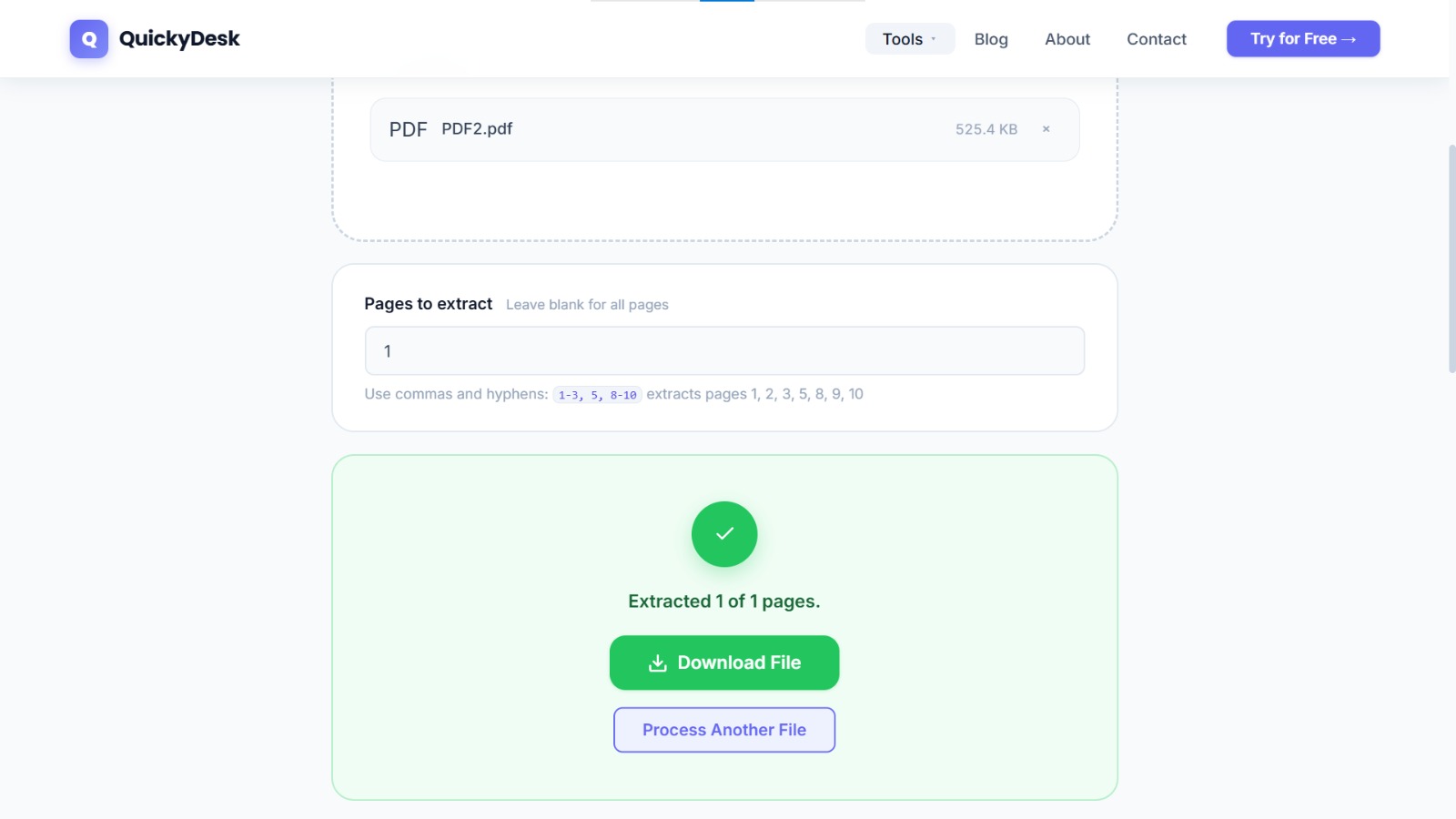
- Enter the page range for the chapter you want. Using the reference table, enter the range for Chapter 1:
12-38 - Download the chapter file. Save immediately with a clear name:
Textbook_Ch01_Introduction.pdf - Repeat for each chapter. Upload the full PDF again, enter the next chapter's range, download and name the output.
Split your textbook into chapters
Free, no login required. Works in any browser on any device.
Split PDF Free →Organizing Your Mobile Bookshelf
On Android: Create a dedicated folder in your Files app — something like "Textbooks > BiologyYear2 > Chapters." Most Android PDF reader apps let you browse directly to a folder.
On iPhone: Save chapter PDFs to your Files app inside a named folder under "On My iPhone" for offline access, or inside iCloud Drive for cross-device access.
Naming convention matters: Use a leading number for natural sorting: Ch01_Introduction.pdf, Ch02_Foundations.pdf. Without a leading number, files sort alphabetically: Chapter 10 sorts before Chapter 2.
Keep the full file somewhere accessible: Don't delete the original merged textbook after splitting. Store it on a computer or cloud drive. If you need a chapter you didn't extract, the source is still there.
When to Compress Instead of Split
If your primary concern is battery life and opening speed rather than storage, compression may be a more efficient first step. A 200 MB scanned textbook often compresses to 60–80 MB, which opens and renders noticeably faster on mobile.
For very large files where both storage and performance are concerns, compress first then split — individual chapter files will be even smaller and faster than splitting the uncompressed original.
To go the other direction and combine chapters you've already split, see our guide on merging scanned PDF book chapters for easier reading.
QuickyDesk offers a complete free PDF toolkit — merge, split, compress, convert, protect, watermark, and more. No account required, no watermarks.
FAQ
What if a chapter spans non-sequential pages?
Enter ranges as comma-separated values: 72-88, 91-109 to extract pages 72 through 88 and pages 91 through 109 as one file.
Will splitting damage the content of the chapters I extract?
No. The split operation extracts pages as-is — font data, image quality, text encoding, and annotations are preserved exactly.
I split chapter 3 but the first page is actually the last page of chapter 2. How do I fix this?
Your page range extended one page too early. Re-split using the corrected start page after checking the actual page boundary in the full file.
Is there a limit to how many times I can split the same file?
No. You can upload the full file as many times as needed and extract different ranges each time.
Can I merge select chapters back together for a focused study session?
Yes. Take the individual chapter files and run them through QuickyDesk's Merge PDF tool. Upload the chapters in order, merge, and download a custom reading bundle.