The semester starts, the textbook costs $180, and someone in your study group has already scanned the whole thing — but chapter by chapter, saved as fourteen separate files. Chapter 1 is there. Chapter 3 is missing. There are two files called "ch7." By week three you've spent more time managing files than reading them.
A unified, single-file PDF changes that completely — you get continuous scrolling, the ability to read from any chapter without hunting through a folder structure, and if your chapter files had OCR applied, full-text search across the entire document.
Why a Single Merged File Is Better for Reading and Studying
Search works across the entire document
If your chapters were processed with OCR, a single merged file means one search query covers the entire textbook at once. Without OCR, navigation relies on page thumbnails and the printed table of contents — the same limitation whether chapters are merged or kept separate.
Continuous scrolling and bookmarks
A unified PDF allows you to scroll from the end of Chapter 4 directly into Chapter 5 without file switching. PDF annotation tools let you bookmark specific pages — which only work within a single file.
Compatibility with reading apps
E-reader apps on tablets — GoodReader, Notability, Adobe Reader Mobile, Xodo — are designed around single documents. They track your last reading position, allow synchronized highlighting, and generate automatic tables of contents. These features only work across a complete file.
Easier sharing
When a classmate asks for the reading, sending one file is cleaner than sending fourteen and hoping they're all in the right order.
Preparing Your Chapter Files Before Merging
Verify you have all chapters
List every chapter, preface, introduction, appendix, and bibliography that should appear in the final file. Compare against your actual files. Identify the missing chapter now, not after you've already merged and distributed.
Establish the correct reading order
The conventional structure for an academic textbook:
- Cover page (if scanned)
- Title and copyright page
- Preface or foreword
- Table of contents
- Chapters in sequence
- Appendices
- Bibliography or references
- Index
Don't assume alphabetical or numerical filename order matches this sequence.
Check for duplicate or overlapping pages
Some scanning workflows accidentally include the last page of one chapter as the first page of the next. Flip through each file quickly and note the first and last page content before merging.
Confirm scan quality
Look for pages that are upside-down, rotated 90 degrees, or so dark that text is illegible. These need to be corrected before merging.
Merging Your Chapter PDFs Using QuickyDesk
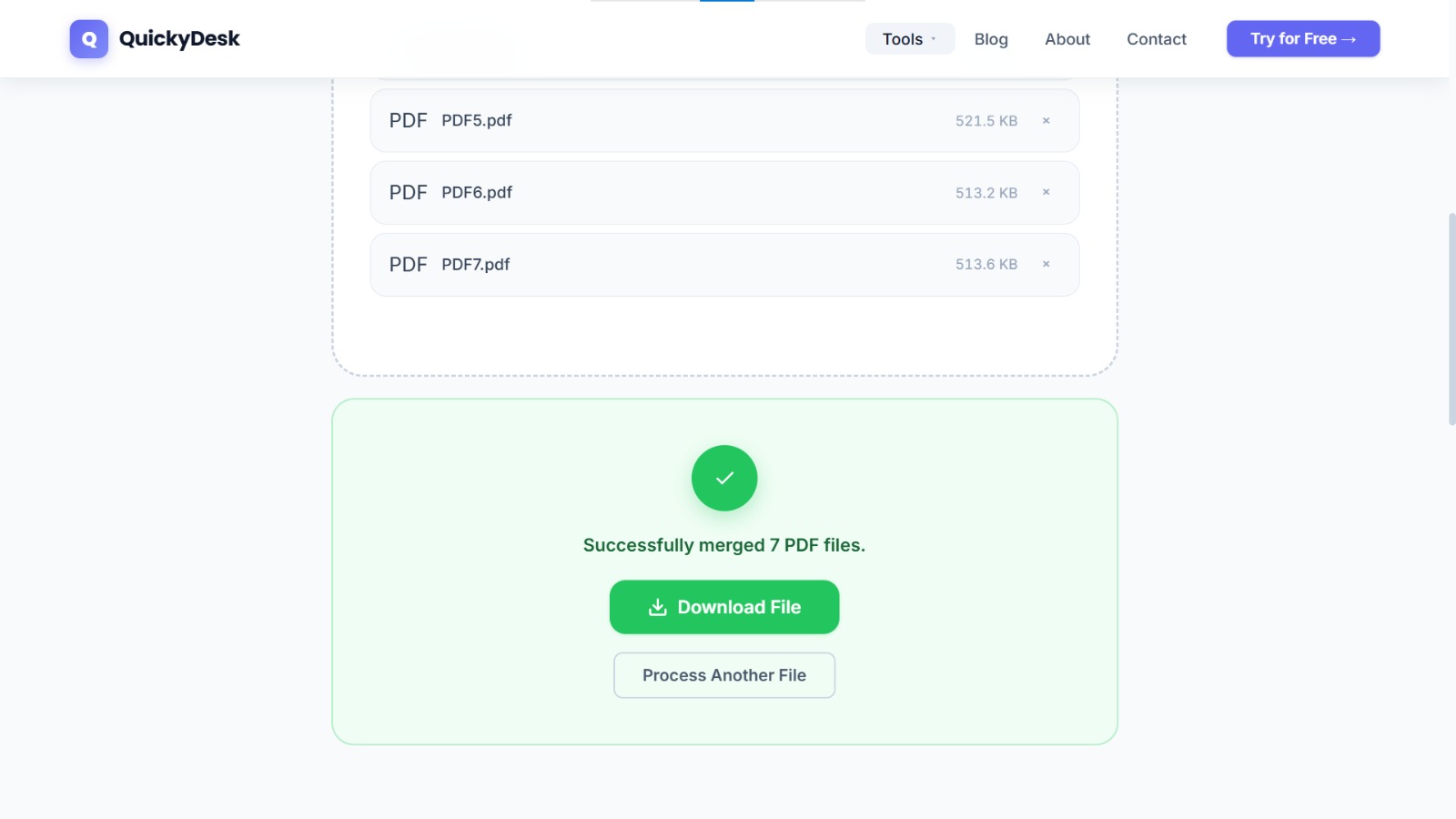
- Open the Merge PDF tool from QuickyDesk. No registration needed.
- Upload your chapter files. You can upload multiple files at once.
- Arrange in reading order. Review the file list carefully and drag files to match the reading sequence you established.
- Run the merge. A 200-page merged textbook typically completes in 20–40 seconds.
- Download and do a verification pass. Does it open on the cover? Does scrolling from Chapter 3 to Chapter 4 flow correctly? Is the appendix at the end?
Merge your textbook chapters into one PDF
Free, no login required. Handles large academic documents.
Merge PDF Free →Reducing File Size After Merging
A merged textbook assembled from high-resolution scans can be 100–300 MB. This creates issues: slow opening on older devices, insufficient for email attachment, slower navigation performance.
After merging, run the file through QuickyDesk's Compress PDF tool. For scanned PDFs that are primarily image data, compression typically achieves 40–70% size reduction without perceptible change in readability. A 250 MB merged textbook can compress to 80–100 MB.
If the textbook is still too heavy for your reading device after compression, see the companion guide on splitting PDF ebook chapters to save mobile storage.
QuickyDesk offers a complete free PDF toolkit — merge, split, compress, convert, protect, watermark, and more. No account required, no watermarks.
FAQ
Can I merge PDFs with different page sizes?
Yes. The merge operation combines files regardless of page dimensions. Each page retains its original dimensions in the merged output.
Does the merged file create a clickable table of contents?
Not automatically. Merging combines pages but doesn't generate hyperlinked bookmarks. PDF search (Ctrl+F) serves as a practical alternative for most reading purposes.
What if some chapter PDFs are password-protected?
Remove password protection from each file before uploading. Open the document in a PDF viewer, enter the password, and save an unlocked copy.
My merged file is 400 MB. Is there a file size limit?
The Merge PDF tool handles standard academic documents without issue. Very large files may take longer to process. If source scans are very high resolution, reducing scan DPI at the source before merging produces a more manageable output.
Can I add new chapters to an already-merged file later?
Yes. Upload the existing merged file along with the new chapter file in the correct position in the queue, and run the merge again. The output is a new, complete file including the added chapter.