Last updated: January 2026
You can split any PDF into separate pages or sections for free using an online tool — no Adobe Acrobat subscription, no software to install, no login. Upload your PDF, choose what to extract, and download the result in seconds.
Why You Shouldn't Need Adobe Acrobat for This
Adobe Acrobat is the gold standard for PDF editing — but it costs anywhere from $15 to $25 per month, and most people only need it for occasional tasks like splitting a file. That's a lot to pay for something you do once in a while.
You don't need Adobe Acrobat or any paid software to split a PDF. Free online tools handle it just as well, without the subscription, without the software install, and without the learning curve.
How to Split a PDF for Free — Step by Step
QuickyDesk's free PDF splitter lets you extract pages or split documents directly in your browser. No login, no watermark on output files, no cost. It works on Windows, Mac, Android, and iPhone.
Step 1 — Open the Split tool
Go to quickydesk.com/split in any browser. Works on Windows, Mac, Android, and iPhone — no software required.
Step 2 — Upload your PDF
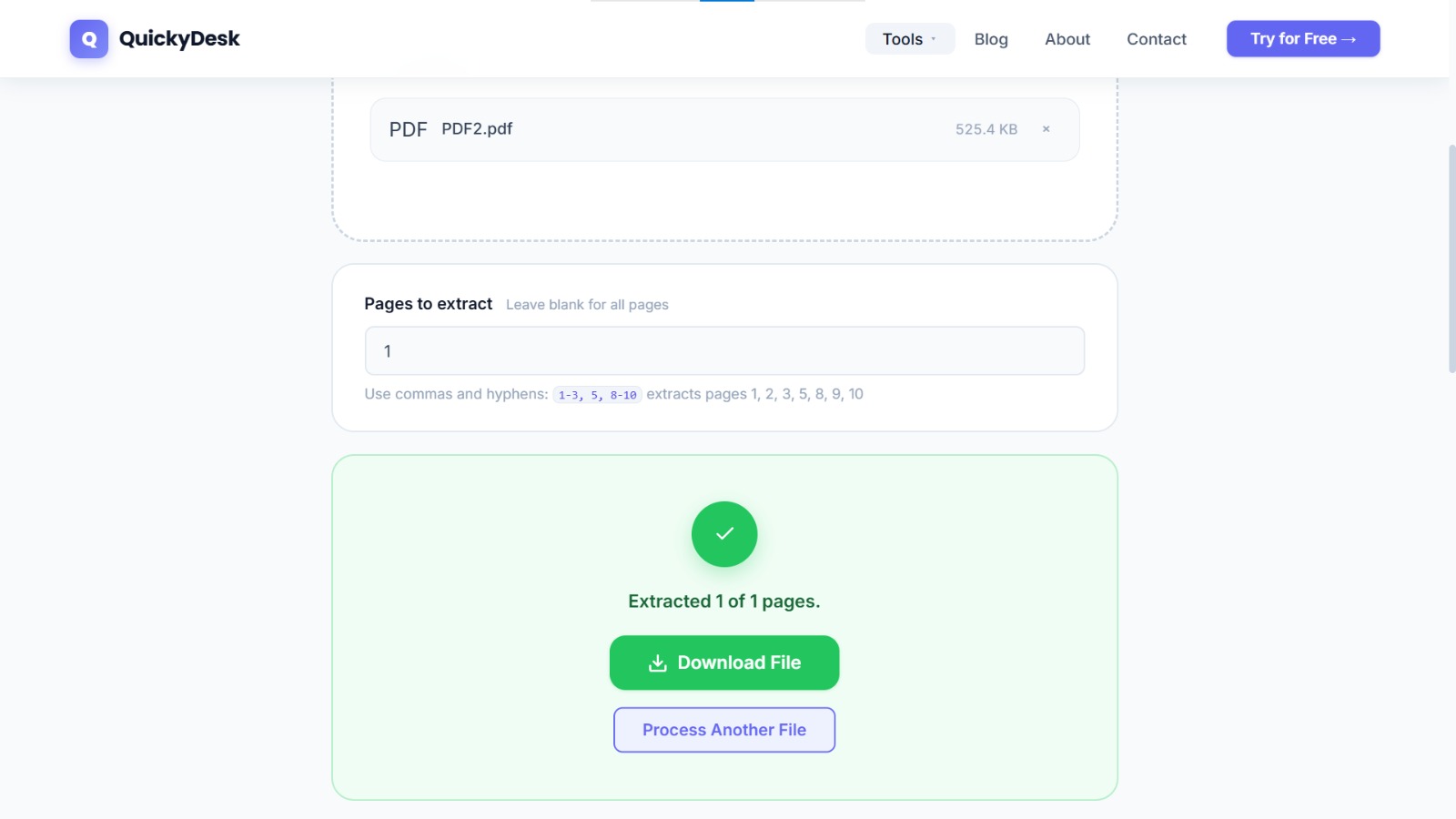
Click the upload button and select the PDF you want to split. You can also drag and drop the file onto the page.
Step 3 — Choose how to split it
Select which pages or page ranges you want. Want just pages 1–3? Only page 5? The whole document broken into individual pages? You choose.
Step 4 — Download the result
Hit Split. Your extracted pages or sections are processed in seconds. Download the result to your device.
No Adobe account. No monthly fee. No watermark.
When You Still Need Adobe Acrobat
A browser-based splitter covers the vast majority of everyday jobs — pulling out a chapter, separating a signed page, or extracting a single form. There are still a handful of tasks where desktop Acrobat earns its subscription: permanently redacting text so it cannot be copied back out, editing the actual words on a page, running OCR on a scanned document, or batch-processing hundreds of files with an automated action. For simply reorganising or extracting pages, none of that is required.
The practical rule of thumb:
- Separating or extracting pages — a free browser tool is faster to open and just as accurate.
- Editing page content or redacting — use Acrobat or a dedicated editor.
- One-off tasks — paying a monthly fee for something you do occasionally rarely makes sense.
Split your PDF now — no software needed
Free, no login, no watermark. Works on any device.
Split PDF Free →Common Reasons People Split PDFs
- Extracting a single page from a large document. You received a 40-page report but only need page 12. Split it out and send just that page.
- Reducing file size before sending. A 20-page PDF is always smaller than the full 100-page version. Split out what you need, then reduce the file size with the compress tool if it still needs to be smaller.
- Separating merged files someone sent you. Sometimes you receive a combined PDF and need to work with specific sections separately.
- Reusing sections of a document. If you're building a new report and want to pull pages from an existing one, splitting is the first step before combining them into a new PDF.
Tips for Splitting PDFs Effectively
- Know your page numbers before you start. Open the PDF in your browser or a PDF viewer first and note which pages you want to extract.
- Split before compressing. If you're trying to get a file under a size limit, split out the pages you need first, then run the smaller file through the free PDF compressor.
- Use ranges, not individual pages, for long sections. If you need pages 5 through 18, select them as a range rather than extracting one page at a time.
- Check the result before deleting the original. Download and open your split file to confirm the right pages came through before discarding the original.
QuickyDesk offers a complete free PDF toolkit — merge, split, compress, convert, protect, watermark, and more. No account required, no watermarks.
FAQ
Can I really split a PDF without Adobe Acrobat?
Absolutely. Free online tools like QuickyDesk handle splitting without any software, subscription, or login. Adobe Acrobat is powerful, but it's overkill for basic tasks like this.
Can I extract only specific pages instead of splitting the whole thing?
Yes. You can choose exactly which pages or page ranges to extract — you're not forced to split every single page individually.
Will splitting affect the content on the pages?
No. Splitting is a structural operation — it only divides where the document begins and ends. Text, images, tables, and formatting are completely untouched.
Can I do this on my phone?
Yes. QuickyDesk works in any mobile browser on both iPhone and Android. No app download needed.
What if I split the wrong pages by mistake?
Just go back and run the original PDF through the tool again. Your original file is not changed by the process — you're always working from a copy.
Can I extract just one page from a PDF to send separately?
Yes — that's one of the most common uses. Upload the document, select just that page number, and download a single-page PDF. Useful for sending a single certificate, invoice page, or signed form without sharing the whole file.
Conclusion
Splitting a PDF doesn't require Adobe Acrobat, a paid subscription, or any software at all. All you need is a browser and the file you want to split.
QuickyDesk's free split tool is fast, works on every device, requires no login, and never adds a watermark. Upload your PDF, choose your pages, and download the result in seconds.
Need to shrink the file afterward? Run it through the free PDF compressor. Need to combine it with something else? Use the free PDF merge tool. All free, all in one place.