Last updated: January 2026
You've spent time polishing both documents. The resume is clean, the cover letter is tailored, and you're ready to apply. Then you hit the upload screen and see a single field: "Upload your application document (PDF only, max 5MB)."
One field. Not two.
This is increasingly the reality on modern job portals — Workday, Greenhouse, Lever, BambooHR, and countless company-specific career pages. They're designed to capture one file per applicant, and they don't have a separate cover letter section. If you upload only your resume, your cover letter disappears. If you upload only the cover letter, recruiters never see your credentials.
The professional solution is to merge both documents into a single, properly ordered PDF before you hit upload.
Why a Combined PDF is the Right Approach
Beyond just working around a technical limitation, submitting a single merged PDF is genuinely better practice.
Applicant Tracking Systems (ATS) handle one file more reliably
Most large employers use ATS software to parse, store, and search through applications. When two separate files are uploaded or emailed, ATS platforms sometimes associate only one with your candidate profile, or they store the files with auto-generated names that make it unclear which belongs to whom. One merged file eliminates ambiguity.
It prevents documents from getting detached
When applications arrive by email, attachments can get separated in forwarded threads. A hiring manager may forward your resume to a department head without realising the cover letter was a second attachment. A single file travels intact.
It looks intentional and polished
Submitting a combined document signals that you're detail-oriented. It's a small thing, but in competitive applicant pools, small things accumulate.
Before You Merge: Getting Both Documents Ready
The merge itself takes about thirty seconds, but the quality of your final output depends on how the individual documents are prepared.
Export from Word as PDF — don't upload .docx files
If your resume or cover letter is currently a Word document, save it as a PDF before merging. In Microsoft Word: File → Save As → PDF. In Google Docs: File → Download → PDF Document (.pdf). This preserves your fonts, layout, and spacing exactly as intended. When Word documents get opened on different machines, fonts can substitute and formatting can shift — a problem you eliminate by working in PDF.
Check page orientation
Both documents should be portrait orientation unless you deliberately designed a landscape resume. Mixed orientations inside a merged PDF look jarring and unprofessional.
Confirm margins and font families look consistent
If you wrote your cover letter in Times New Roman and your resume is in Calibri, they'll feel disconnected when viewed back-to-back. Matching fonts and similar margin widths create a more cohesive document.
Settle on the page order
Convention is cover letter first, resume second. Most hiring managers expect this sequence — the cover letter is the introduction, and the resume is the supporting evidence.
How to Merge Them Using QuickyDesk
- Go to quickydesk.com/merge. No account or email address required.
- Upload your cover letter PDF first (drag and drop, or click to browse).
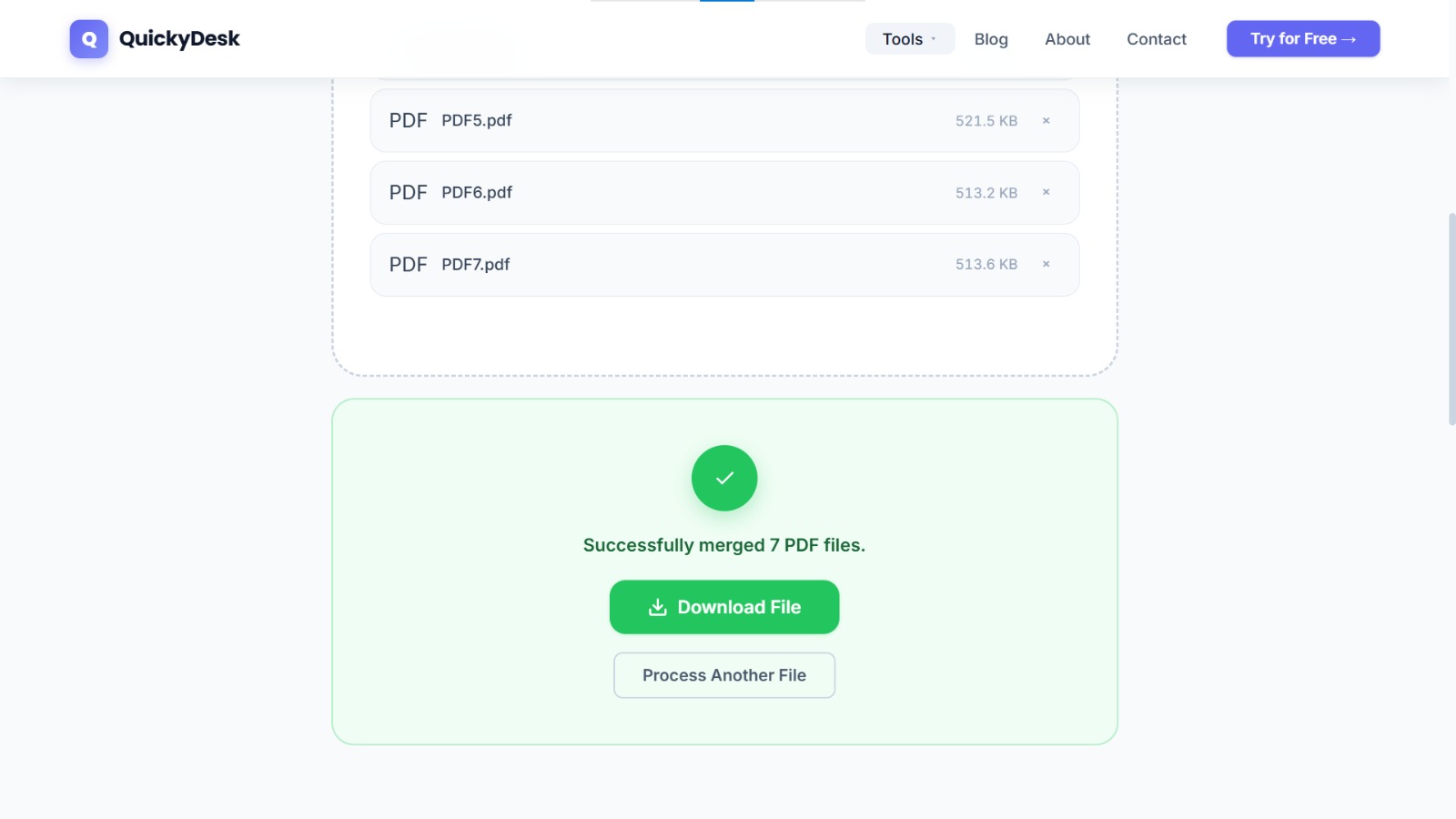
- Upload your resume PDF second. You'll see both files listed in the upload queue.
- Check the order. The merge tool shows the files in sequence — confirm that your cover letter appears above your resume. If they're reversed, drag to reorder before proceeding.
- Click Merge. Processing typically takes 5–10 seconds.
- Download the combined PDF and open it to do a final check.
The resulting file will have your cover letter as page one and your resume beginning on page two (or however many pages your cover letter runs). Everything appears as a single continuous document.
Merge your resume and cover letter now
Free, no account required, no watermarks on your output.
Merge PDF Files Free →Verifying the Output Before You Submit
Take two minutes to review the merged file before attaching it anywhere:
- Scroll through every page. Make sure no pages were dropped, no blank pages were introduced, and the document flows naturally.
- Check that text is selectable. Click and drag over a line of text in your PDF viewer. If it highlights, your text is properly encoded — ATS systems can read it. If it doesn't highlight, the resume may have been scanned rather than exported as a true PDF, and ATS will likely struggle to parse your keywords.
- Verify file size. Most portals accept files up to 5–10 MB for resumes. If your merged file is larger than expected, run it through the free Compress PDF tool to bring it down without affecting readability.
Naming Your File Professionally
This detail is often overlooked. File names like resume_FINAL_v4_use_this_one.pdf are common and create a bad impression. When a recruiter downloads your file, what they see in their downloads folder is the file name.
Use a clean, professional convention:
FirstName_LastName_Resume_CoverLetter.pdfOr if the portal specifies a format, follow that exactly. Some companies ask for LastName_FirstName_Role.pdf. When in doubt, first name, last name, and the word "Application" is universally appropriate.
Applying from Your Phone?
If you're applying on the go, combining a resume and cover letter on mobile used to be a headache. QuickyDesk's merge tool works on mobile browsers without any app installation — the same drag-and-drop interface works on iOS and Android. For a full walkthrough of mobile PDF tasks, see our guide on merging PDFs from iPhone and Android.
What About Google Docs or Word's Built-In Export?
Google Docs can export multi-document content, but it doesn't have a native feature to combine two separate documents into one PDF without manual copying and pasting — which risks breaking your formatting. Word's "Insert Object" feature can embed one document into another, but it's unreliable with complex formatting. Using a dedicated merge tool is cleaner and faster for this use case.
Should You Password-Protect Your Application PDF?
For most job applications, you'll email or upload directly to a portal — password-protecting is usually unnecessary and can actually cause issues if the recruiter can't open it. However, if you're sending a sensitive version of your portfolio or supplementary materials via a less controlled channel, a password can be appropriate. See our guide on how to password-protect a PDF if needed.
QuickyDesk offers a complete free PDF toolkit — merge, split, compress, convert, protect, watermark, and more. No account required, no watermarks.
FAQ
Will the merged PDF preserve hyperlinks in my resume (e.g., LinkedIn, portfolio links)?
Yes. Merging PDFs combines them at the structural level, so clickable hyperlinks embedded in either document remain active in the merged output.
My cover letter is one page and my resume is two pages. Will the order work correctly?
Absolutely. The merge tool stacks all pages sequentially regardless of how many pages each document contains. Page 1 of the merged file will be your cover letter, pages 2–3 will be your resume (in this example).
Should the cover letter always go first?
Conventionally, yes. The cover letter is your introduction — it should be the first thing a recruiter sees when they open the file. Some applicants in design fields put their resume first if the visual layout serves as a portfolio intro, but for standard office roles, cover letter first is the safe default.
Does QuickyDesk retain my resume or personal data after processing?
No. QuickyDesk automatically deletes all uploaded and processed files within 15 minutes of the session. Your documents are not stored, indexed, or shared.
Can I merge more than two PDFs? For example, adding a references page?
Yes. The merge tool supports multiple files simultaneously. Add your cover letter, resume, and references sheet (or any additional documents) in one upload, arrange them in order, and merge them all into a single file.