There's a persistent assumption that shrinking a PDF is a trade — you give up some sharpness to get a smaller file. It's understandable. Lossy compression in image editing tools like JPEG does exactly that: it discards visual information to reduce size, and if you push it too far, you end up with blocky, degraded output.
PDF compression works differently, and understanding the distinction will save you from sending documents you're not fully confident in.
The Real Source of PDF File Bloat
Before getting into compression mechanics, it helps to know what's actually making your PDF large. Most oversized PDFs aren't big because of the visible content — they're big because of the invisible overhead packed into the file structure.
Metadata and Revision History
Every time a PDF is edited and re-saved, software like Adobe Acrobat or Microsoft Word appends an incremental update to the file rather than rewriting it cleanly. After a dozen edits, a document that should be 800 KB can carry 4 MB of revision history that serves no purpose in the final version.
Embedded Font Data
PDFs embed font files to guarantee they display consistently on any device. The problem is that many PDF generators embed the entire font — every character, numeral, and symbol in the typeface — even if your document only uses 40 of them. A single embedded font can add 200–400 KB to a file.
Unoptimized Image Streams
Images inside a PDF are stored as compressed streams, but the compression format varies. Some are stored as TIFF-equivalent data, which is lossless but large. Others are stored as high-resolution JPEG without any quality trade-off applied. Neither approach is space-efficient for a document meant to be read on screen.
Unused Objects and Orphaned Resources
When elements are deleted from a PDF in an editing application, the underlying data isn't always removed — it's just marked as unused. These orphaned objects accumulate silently.
What Smart Compression Actually Does
A well-implemented PDF compressor doesn't throw away visible content. Instead, it targets the overhead categories above:
- Metadata stripping removes document history, author information, software version stamps, and embedded edit logs. None of this is visible when you read the document.
- Font subsetting replaces the full embedded font with a subset containing only the characters actually used in your document. Text remains perfectly sharp and selectable.
- Image stream re-optimization re-encodes image data using more efficient compression algorithms without perceptible change at normal viewing sizes.
- Cross-reference table rebuilding rewrites the file's internal index cleanly, eliminating gaps left by incremental saves and orphaned objects.
QuickyDesk's Compress PDF tool applies these techniques using PyMuPDF — a high-performance PDF processing library that targets internal structure rather than visible content. The result is a file that looks identical to the original at any zoom level, with a fraction of the storage footprint.
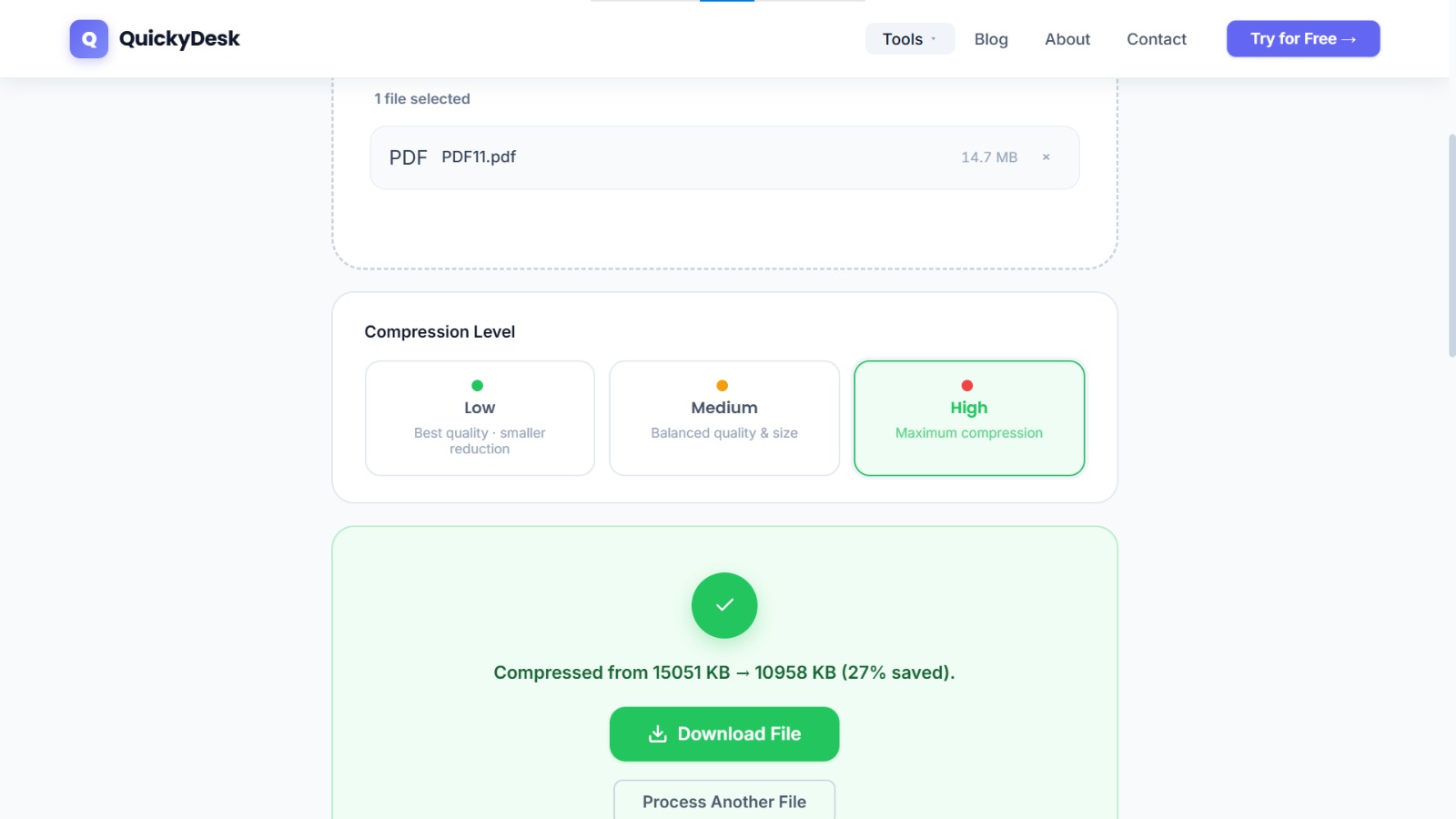
How to Compress a PDF Using QuickyDesk
- Open the Compress PDF tool from QuickyDesk's homepage. No registration, no email address required.
- Upload your file. Drag it onto the upload zone or browse your local files.
- Let it process. For most documents, compression completes in 10–20 seconds.
- Review the size comparison. QuickyDesk displays both the original and compressed file sizes before you download.
- Download the compressed PDF. Open it in your preferred viewer and do a visual pass before using it.
How to Verify Quality After Compression
The download step isn't the finish line — a quick quality check is worth doing before you send or publish the file.
Zoom in on body text
At 150–200% zoom in a PDF viewer, text should look absolutely sharp. If characters were crisp before compression, they'll be crisp after.
Inspect charts, diagrams, and line art
Vector graphics (charts from Excel, diagrams from Illustrator) survive compression entirely intact because they're stored as mathematical paths, not pixel grids.
Check embedded photographs
Zoom to 100% and compare visually with the original. The difference — if any — should be imperceptible at normal reading size.
Confirm the page count
Count pages in the compressed file and confirm it matches the original. This rules out any edge-case truncation.
When Compression Works Best (and When It Has Limits)
PDF compression delivers the most dramatic results on:
- Word-processed documents exported as PDF — reports, proposals, memos
- PDFs with multiple embedded Office-style charts
- Documents that have been edited many times
It works less dramatically on:
- Scanned documents already stored as compressed JPEG images internally
- PDFs that were already compressed by another tool
If you're compressing a file specifically to get it under an email attachment limit, our guide on PDFs that are too large for email covers that workflow in full, including what to do when a single pass isn't enough.
If you need to remove pages before compressing, the Split PDF tool lets you extract only the sections you need — a smaller source document often compresses even further.
Once compressed, if the document contains sensitive content, consider adding password protection before sharing. Our guide on how to password-protect a PDF walks through the full process.
QuickyDesk offers a complete free PDF toolkit — merge, split, compress, convert, protect, watermark, and more. No account required, no watermarks.
FAQ
Does compressing a PDF affect selectable text?
No. Text content — including the ability to highlight, copy, and search — is completely preserved. Compression targets file structure and image data, not the text layer.
Will compression remove my digital signature or invalidate a signed document?
Metadata stripping does not remove digital signatures embedded as cryptographic certificates in the PDF. However, if you're working with a formally certified or legally signed PDF, check your organization's policy before compressing.
My PDF shrank by only 5%. Is the tool working correctly?
It may be. If your PDF was already optimized — exported from modern software with efficient defaults — there's less redundant data to remove. Very efficient source files see smaller relative reductions. This is a sign the original was lean, not that something went wrong.
Can I compress a PDF that contains scanned pages alongside typed pages?
Yes. The compressor handles mixed documents without issue. Scanned pages get image optimization, typed pages get font and metadata optimization.
Is there a file size limit for what I can upload?
QuickyDesk handles standard office and professional documents without issue. Very large files may take slightly longer to process than typical documents.