Last updated: January 2026
You have a 90-page lease agreement, and your landlord is asking for just the signature page and the addendum — pages 72 and 85–87. Or you've got a 300-page academic paper and only need to share the methodology section with a colleague. Or your bank statement is 14 pages long and your accountant only needs the summary on page one.
Sending the entire document in each of these situations is sloppy, and sometimes it's a privacy concern. Extracting only the relevant pages is the right approach — and it's far easier than most people expect.
Why Screenshots Are Not the Answer
The first instinct for many people is to screenshot the pages they need. It's quick, it's familiar, and it works in a pinch. But screenshots create real problems:
- Text becomes non-selectable. A screenshot is an image. Your recipient can see the words, but they can't copy text, search within the document, or paste any content. This is a significant limitation for legal documents, reference material, or anything the recipient might need to work with rather than just read.
- Image quality degrades at different zoom levels. A screenshot taken at your screen's native resolution may look fine on your monitor but look soft or pixelated when your recipient opens it at a different size, especially if they zoom in or print it.
- File size is often larger, not smaller. Screenshots of document pages are uncompressed images. A single-page screenshot can be 1–3 MB. A properly extracted PDF page, by contrast, retains the original vector text and is usually a fraction of that size.
- No metadata or formatting. If the original PDF had bookmarks, hyperlinks, or form fields on those pages, they're gone the moment you take a screenshot.
Extracting the pages as a proper PDF preserves everything.
What "Extracting Pages" Actually Does
When you extract pages from a PDF, you're creating a new, standalone PDF file that contains only the pages you selected. The original document is untouched. The extracted file has the same text quality, resolution, and formatting as those pages in the original — it's essentially a clean slice of the document.
How to Extract Pages Using QuickyDesk
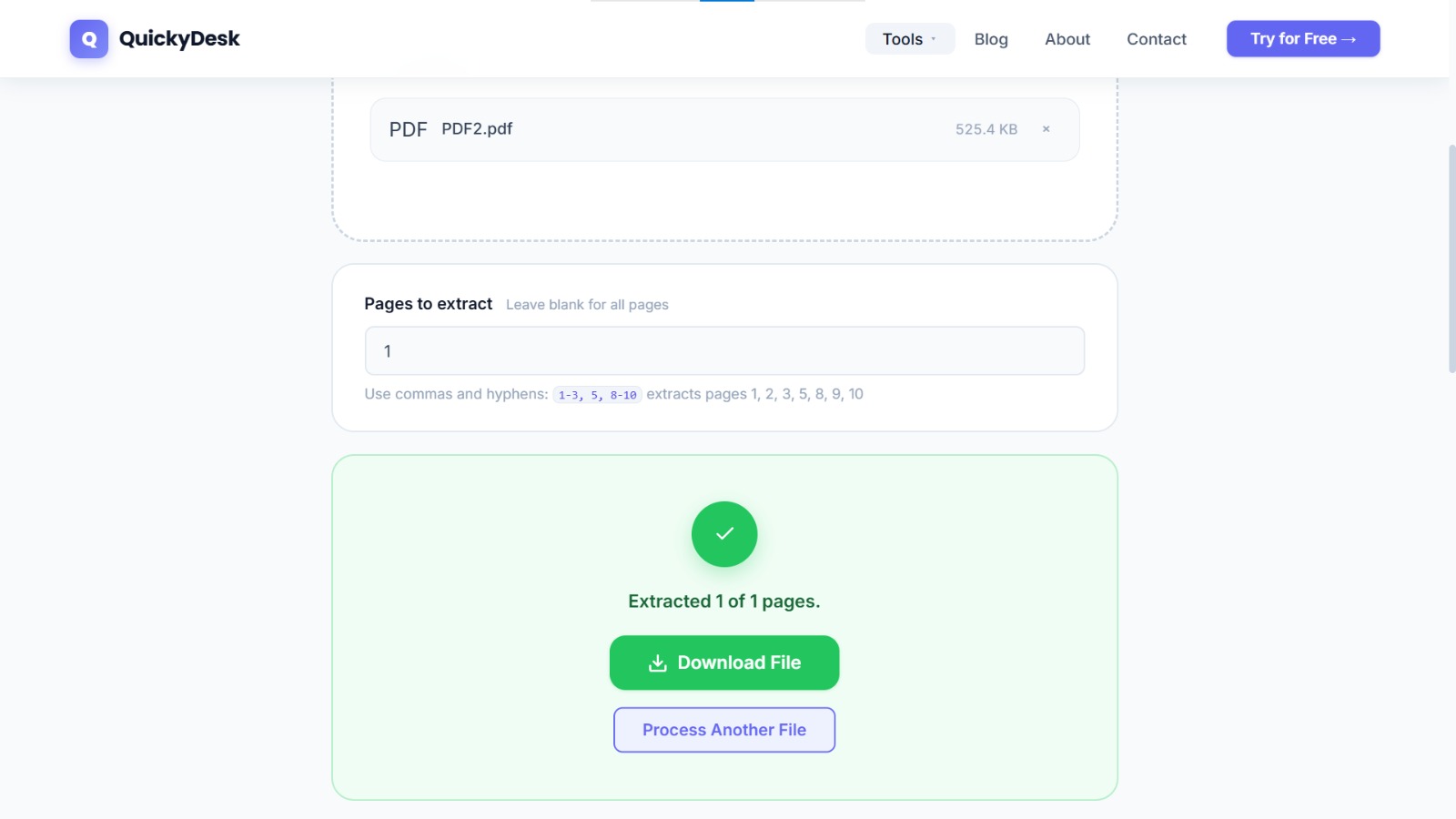
The Split PDF tool at QuickyDesk handles page extraction with a simple range input. Here's the full process:
- Go to quickydesk.com/split.
- Upload your PDF. Drag and drop the file, or use the file browser. There's no login or signup needed.
- Enter your target page numbers. The tool accepts standard range syntax:
5— extracts only page 53, 8— extracts pages 3 and 8 as separate outputs8-10— extracts pages 8, 9, and 10 as a continuous range3, 8-10, 15— extracts page 3, pages 8 through 10, and page 15
- Click Split / Extract.
- Download your extracted file. The output will be a new PDF containing exactly the pages you specified.
The whole operation typically takes under 30 seconds even for large source documents.
Extract pages from your PDF now
Free, no login required, no watermark on your output.
Split PDF Free →Finding the Right Page Numbers
One thing that trips people up: the page numbers printed inside a document don't always match the page numbers the PDF software uses.
For example, a legal document might begin with five pages of a table of contents and preamble numbered with Roman numerals (i, ii, iii, iv, v) before switching to Arabic page numbering starting at 1. The PDF file, however, counts all pages sequentially from the beginning — so what the document calls "page 1" is actually page 6 in the PDF.
How to find the real page numbers: Open the PDF in your browser or any PDF viewer and look at the page counter in the toolbar (usually shown as "Page 3 of 90" or similar). The number in that counter — not the printed number in the document footer — is the number you enter into the split tool.
Common Scenarios and How to Handle Them
Sharing a single chapter of a textbook or report
Identify the first and last page numbers of the chapter using your PDF viewer's page counter, then enter them as a range. For example: 24-47.
Extracting a signature page from a contract
Contracts usually place the signature block on the last page or last few pages. Check the total page count, then enter the page number. For a 12-page contract with signatures on page 12: enter 12.
Pulling multiple non-consecutive sections
Use comma-separated values: 1, 4-6, 11 extracts page 1, pages 4 through 6, and page 11.
Removing front matter (title page, TOC) to share just the content
Enter the range starting from the first content page. For example, if pages 1–4 are cover and table of contents and the report content starts on page 5: enter 5-40 (or whatever the last page is).
What to Do with the Extracted PDF
Once you've extracted the pages you need, the resulting file is a normal PDF. You can:
- Email it directly (it will be much smaller than the original — and if it still needs shrinking, run it through the Compress PDF tool)
- Upload it to a portal or shared drive
- Merge it with other documents using the Merge PDF tool if needed
- Archive it separately for reference
A Word on Privacy
Extracting pages isn't just a convenience — sometimes it's a privacy necessity. If a client document contains other people's financial data, contact information, or confidential details on pages you didn't need to share, sending the whole file would be a disclosure you didn't intend to make.
Extracting only the relevant pages before sharing is a basic data hygiene practice. For more on how QuickyDesk handles file security, every uploaded document is processed over encrypted HTTPS and deleted from the server automatically within 15 minutes. For an in-depth look at working without heavyweight software, see the guide on splitting PDFs without Adobe Acrobat.
QuickyDesk offers a complete free PDF toolkit — merge, split, compress, convert, protect, watermark, and more. No account required, no watermarks.
FAQ
Can I extract non-consecutive pages in one step?
Yes. You can enter a combination of individual pages and ranges separated by commas, such as 1, 5, 8-12, 20. The tool will extract all of those pages into the output file in sequential order.
Will the extracted pages look exactly like they do in the original document?
Yes. Page extraction doesn't reprocess, re-render, or compress the content. The text, images, fonts, and layout are identical to the source pages.
Does splitting a PDF affect the original file?
No. The original PDF you upload is used to generate a new file. QuickyDesk does not modify the source document, and the tool does not save or alter your original — it's deleted from the server within 15 minutes.
What if I enter a page number that doesn't exist in the document?
The tool will flag an error if a page number exceeds the document's actual page count. Make sure to verify the total page count in your PDF viewer before entering ranges.
Is there a limit to how many pages I can extract at once?
There's no hard limit on the number of pages you can extract in a single operation. You can pull one page or 50 pages from a 500-page document in the same step.