A signed contract is only as fast as the slowest person in the chain. When a 24-page service agreement containing sections for three different parties gets sent to everyone as one file, you get confusion ("which pages do I sign?"), delays, and sometimes genuine confidentiality problems ("wait, why does this contain the other party's pricing terms?").
Splitting a contract PDF before circulation isn't just a convenience — for multi-party agreements, it's often the professionally correct approach.
Why Sending a Full Contract to Every Signee Creates Problems
Multi-party contracts are structured for completeness, not for individual circulation. A full agreement might contain:
- The master terms applicable to all parties
- Financial schedules specific to each individual party (pricing, payment terms, commission structures)
- Signature blocks for each signee, sometimes with personal details
- Confidential addenda meant only for specific parties
When everyone receives the complete document, each signee can read every other party's commercial terms, compensation details, and personal information. In many business contexts — agency agreements, multi-vendor contracts, employment offers — this is either inappropriate or actively prohibited by the contract itself.
Mapping the Contract Before You Split It
Before uploading anything, spend five minutes with the document and a notepad. Identify the sections each party needs to see and sign, and note the pages each recipient should NOT receive. A simple table helps:
| Recipient | Pages to Include |
|---|---|
| Client A | Pages 1–5 (general terms), Pages 12–14 (Client A schedule + signature) |
| Client B | Pages 1–5 (general terms), Pages 15–17 (Client B schedule + signature) |
| Internal legal archive | All pages (complete original) |
Step-by-Step: Splitting the Contract Using QuickyDesk
- Open the Split PDF tool from QuickyDesk. No account, no sign-in required.
- Upload the full contract PDF. The connection is processed over a secure, encrypted channel. None of the document content is retained, indexed, or accessible after the operation completes.
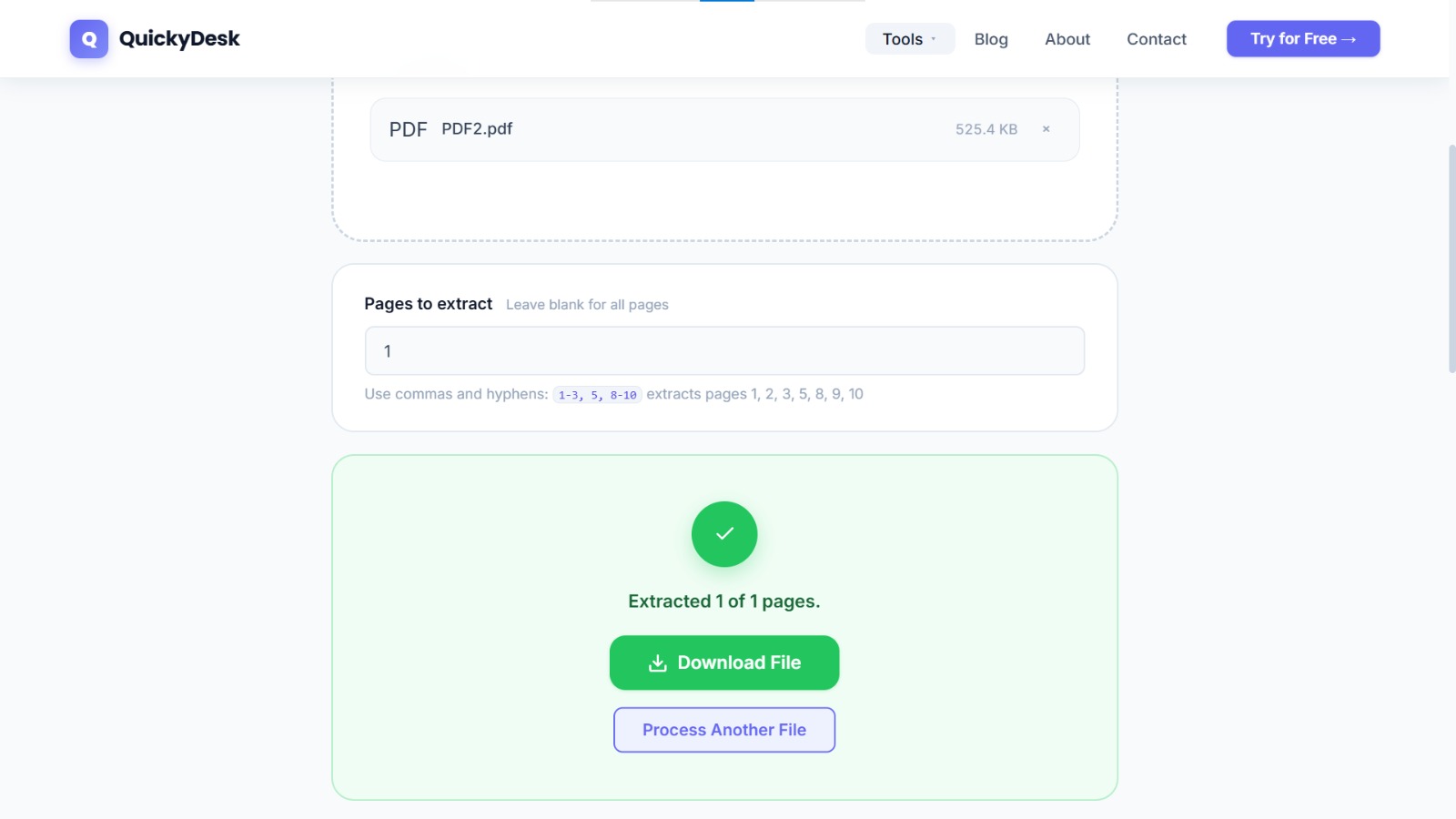
- Enter the page range for the first recipient. For example, if Client A needs pages 1–5 and 12–14, enter:
1-5, 12-14 - Download Client A's section. Save with a clear name:
ServiceAgreement_ClientA_Signature.pdf - Repeat for each additional party. Return to the tool, upload the original full contract again, and enter the page range for the next recipient.
Keep the complete original contract in your records — never distribute the full version to individual parties if the split approach is your chosen method.
Split your contract PDF now
Free, no login required. Extract any page range in seconds.
Split PDF Free →Sending Individual Sections for E-Signature
DocuSign and Adobe Sign accept PDF uploads and allow you to place signature fields anywhere on the page. Upload the split section, place the signature field on the correct line, and send to the specific recipient.
If you're collecting ink signatures, email the split section to each party with clear instructions: "Please sign page 3 and return." Single-party sections reduce back-and-forth because signers don't need to figure out which page applies to them.
Reassembling the Fully Executed Contract
Once all parties have signed their individual sections, compile the complete executed agreement into one archive file using QuickyDesk's Merge PDF tool. Combine all signed sections in their original sequence. The final merged PDF represents the fully executed agreement with all signatures in place.
Also see our guide on extracting specific pages from a large PDF document for more techniques.
Practical Tips for Cleaner Contract Management
- Never alter the content of a page when splitting — any modification to the document after the parties have seen the original creates a legal ambiguity.
- Timestamp your communications — note the date and time you sent each version.
- Confirm page numbers before splitting — PDF page numbers and the printed page numbers inside a document don't always match. Always use your PDF viewer's page counter, not the printed page number.
- Protect sensitive extracts — for schedules or appendices containing pricing or IP, see our guide on how to password-protect a PDF before distributing the extract.
QuickyDesk offers a complete free PDF toolkit — merge, split, compress, convert, protect, watermark, and more. No account required, no watermarks.
FAQ
Does splitting the contract create separate, legally valid documents?
The split output contains unmodified pages from the original PDF. Whether a split section is legally sufficient for execution depends on the contract's requirements. Consult your legal counsel before distributing split sections if uncertain.
Can I split a contract that has already been partially signed?
Yes. Splitting a PDF doesn't remove or alter existing signatures, annotations, or form field data.
The contract has exhibits as separate PDF files. Should I merge them first?
Generally yes. Merging the main agreement and its exhibits into one complete document before splitting gives you a single source of truth to work from.
What if the party's pages aren't in a clean range — for example, pages 3, 11, and 19?
Enter 3, 11, 19 and the tool extracts exactly those pages into a single output file, maintaining their original order.
Should I send signees the split PDF, or print and mail it?
For most business contracts, electronic delivery and e-signature is standard. For formal legal instruments requiring wet signatures, physical mailing may be necessary. Your legal counsel can advise.